
People & Offboarding
Know who has what. When someone leaves, a single checklist shows exactly which equipment to collect.
Managing team members
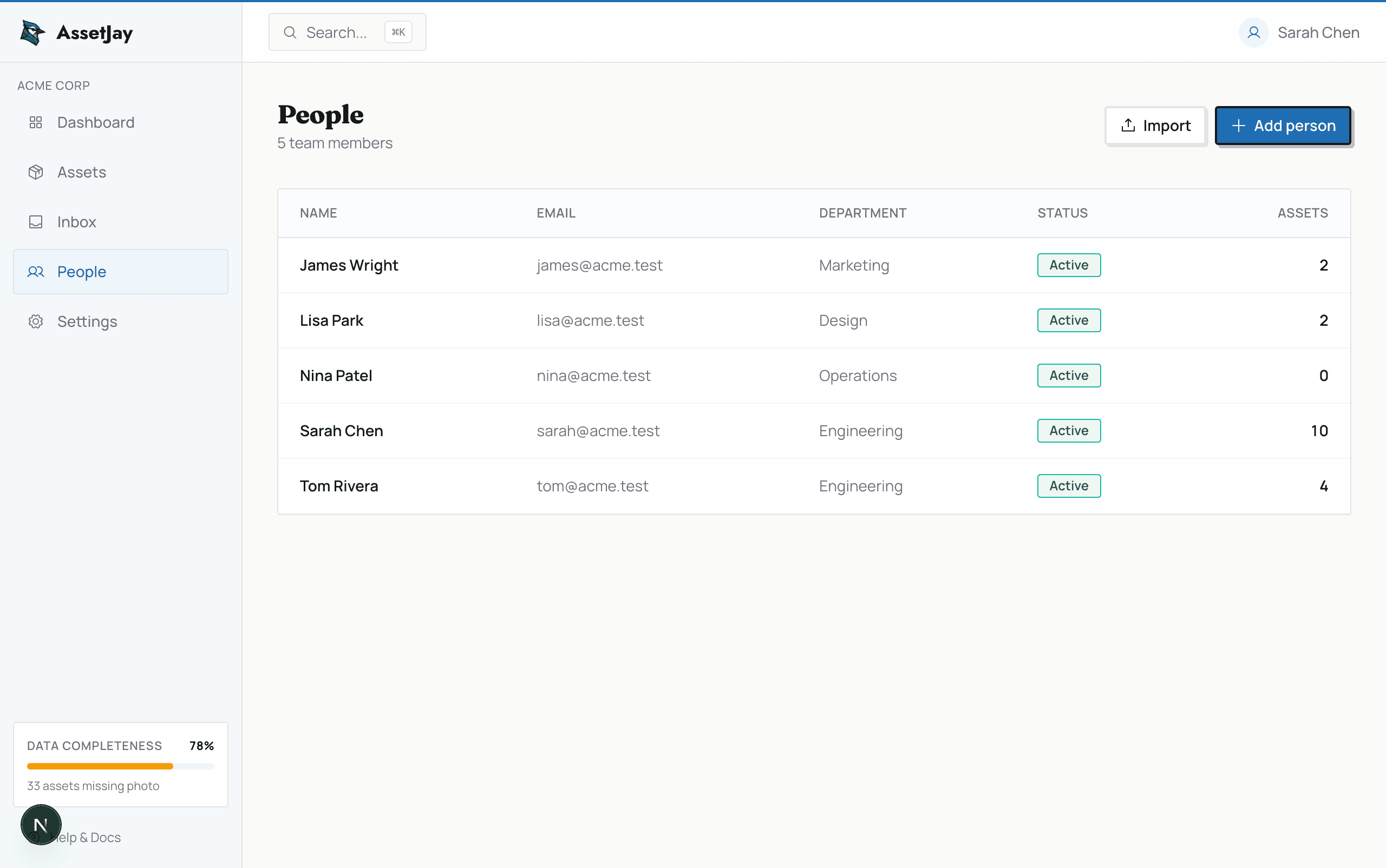
The People page lists everyone on your team. Each person shows how many assets are assigned to them, making it easy to spot if someone has more equipment than they need.
Adding team members
Click Add person and fill in their name, email, department, and role. You can also bulk import people from a CSV file — see the Import guide.
Note: Adding someone as a team member doesn't automatically create a login for them. On Pro, you can invite team members to the Employee Portal so they can see their assigned devices and request equipment.
Offboarding checklists
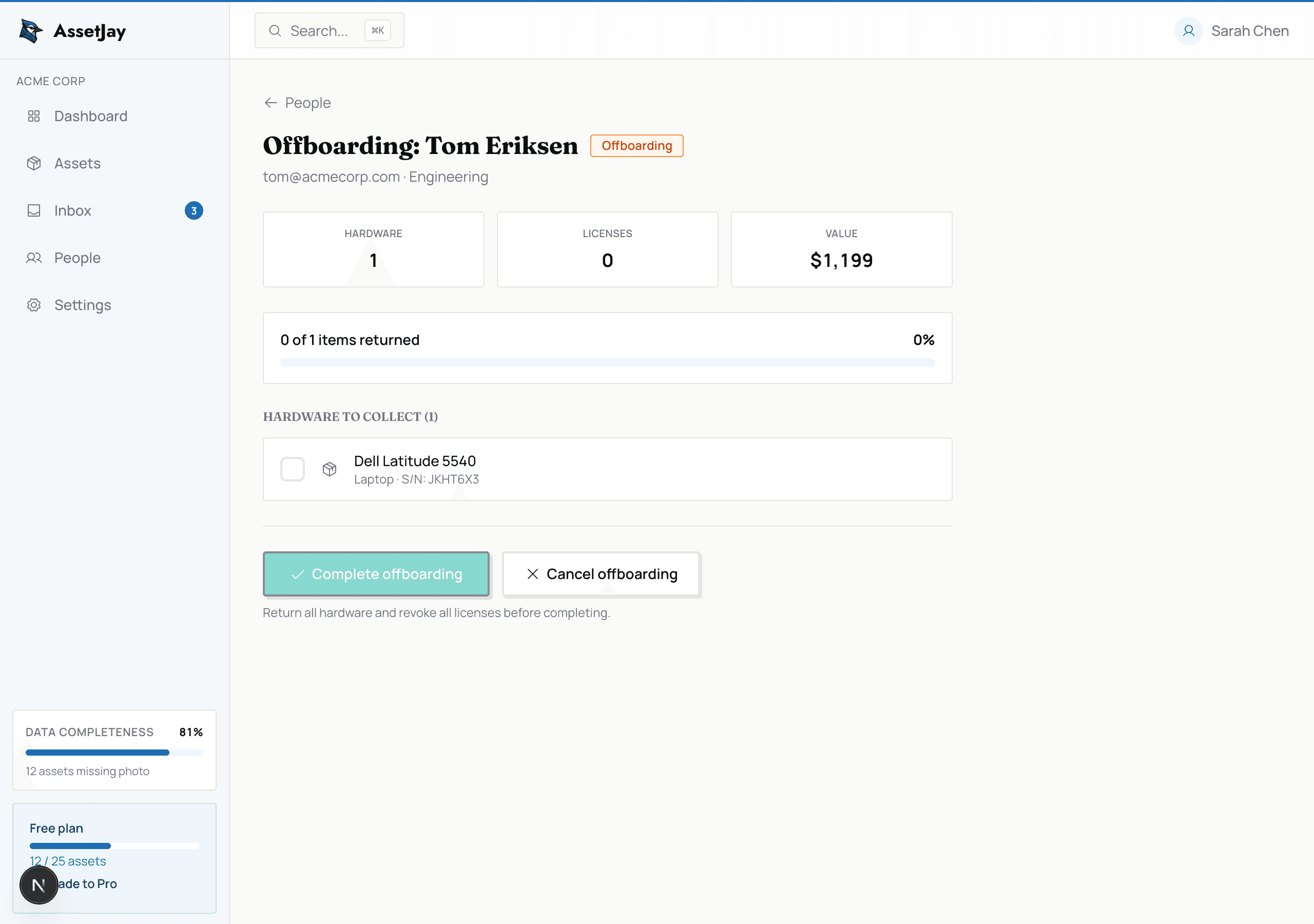
When a team member leaves, start their offboarding from the People page. AssetJay generates a checklist of all their assigned assets so you can track what's been returned.
Start offboarding
Click the offboard button on the person's profile to generate the checklist.
Collect equipment
Check off each item as it's returned. The checklist tracks laptop, monitor, keyboard, and every other assigned asset.
Complete offboarding
Once all items are returned, mark the offboarding as complete. Assets are unassigned and ready for the next hire.