Employee Portal
Give your team their own login to see assigned equipment, request gear, or check things out themselves.
PROHow it works
The employee portal is a separate, stripped-down view for team members. They log in with their email (magic link, no password) and land on a page showing the equipment assigned to them. Depending on the mode you choose, they can also browse available gear and request or check out items.
Employees never see admin data like purchase prices, serial numbers, or other people's assets. They only see what's relevant to them.
Portal modes
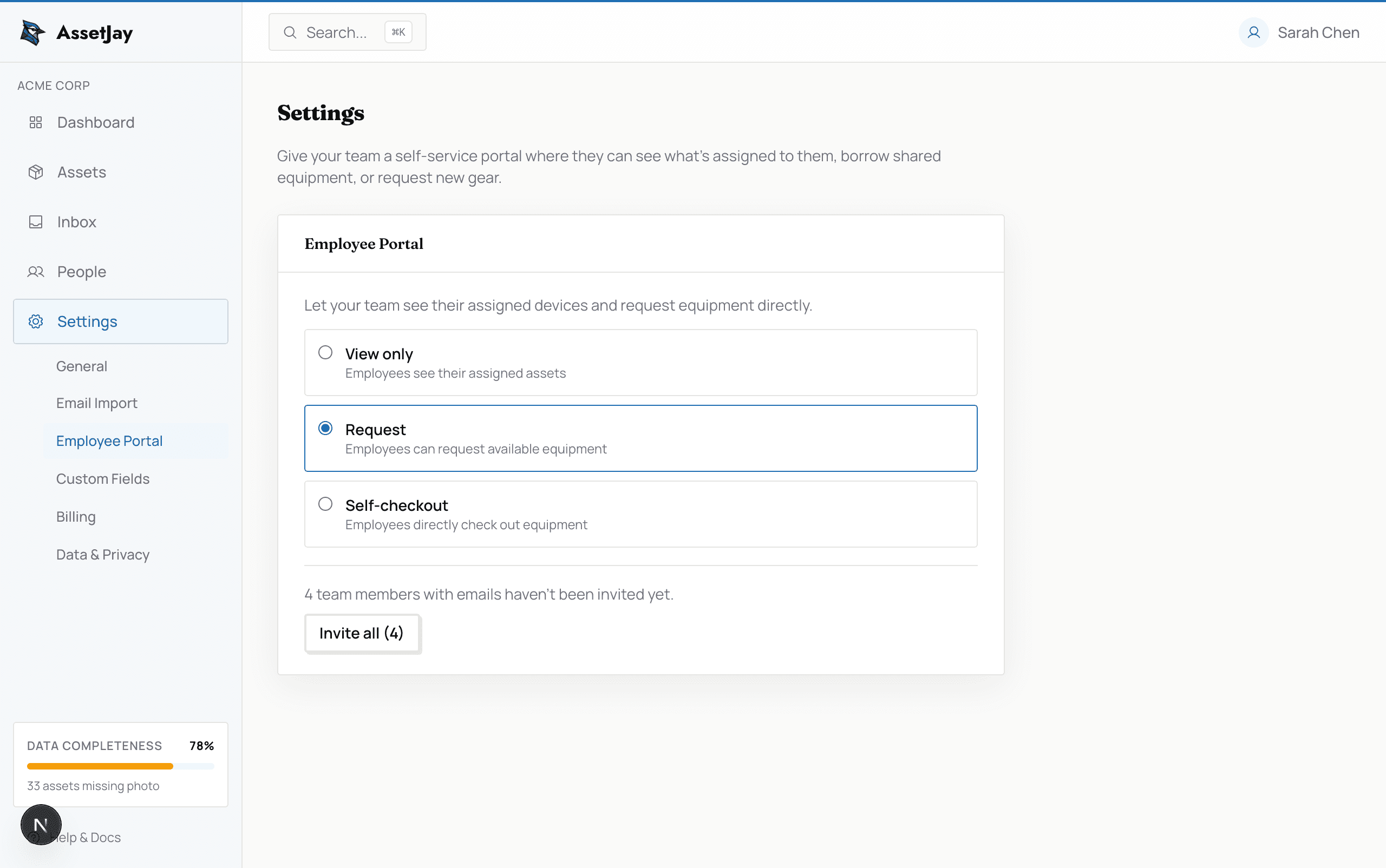
Choose the level of access in Settings → Employee Portal. You can change this at any time.
- View only. Employees see their assigned assets, and that's it. Good for companies that want transparency without any self-service.
- Request. Employees can browse available equipment and submit requests. You approve or deny each request from the admin dashboard.
- Self-checkout. Employees can check out available equipment directly, with no approval step. You'll get an email notification whenever someone checks something out.
Inviting employees
Employees need to be invited before they can log in. There are a few ways to send invites:
- During assignment. When you assign an asset to someone, you'll be prompted to send them a portal invite. This is the most natural trigger, since they get access right when they get equipment.
- Bulk invite from Settings. In Settings → Employee Portal, you'll see how many team members haven't been invited yet. Click “Invite all” to send invites to everyone with an email address.
- From the person's profile. Open any team member's profile and click “Invite to portal” to send a one-off invite.
What employees see
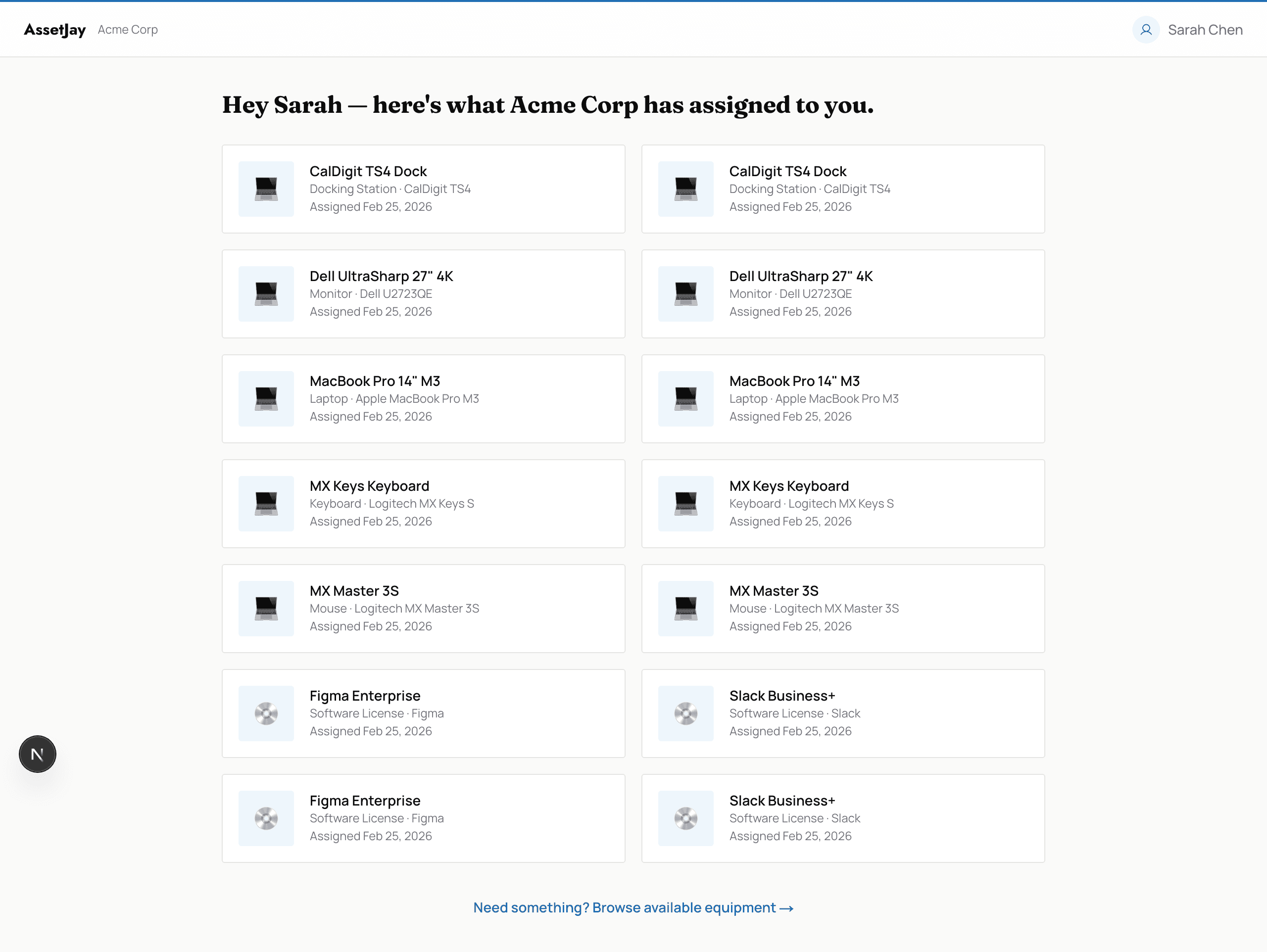
After logging in, employees land on their My Assets page. This shows all hardware and software licences assigned to them, with the asset name, category, and assignment date.
If the portal mode is set to Request or Self-checkout, they'll also see a link to browse available equipment from your pool.
Browsing available equipment
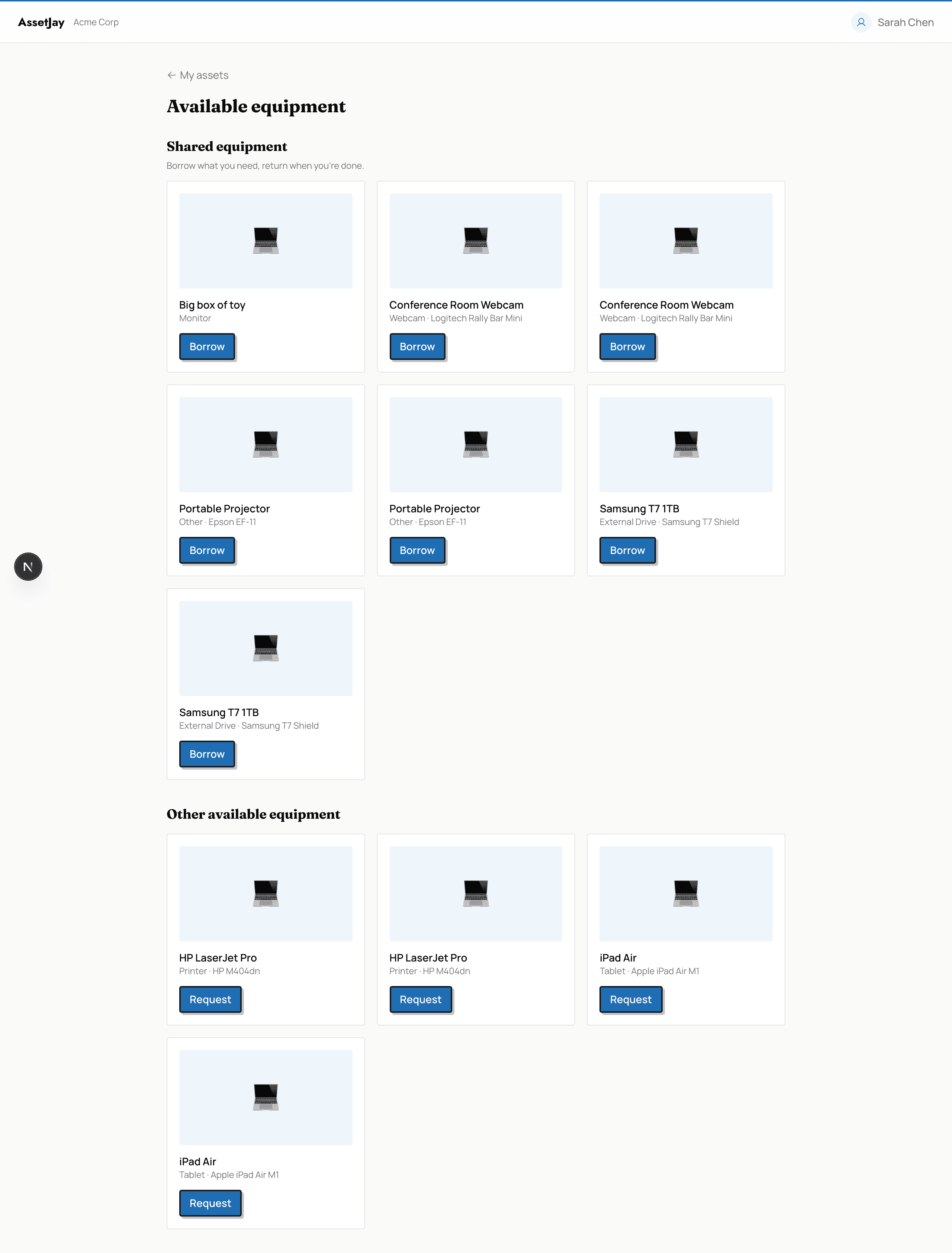
In Request or Self-checkout mode, employees can browse gear that's available in your pool. They'll see the asset name, category, and photo, but not sensitive details like price or serial number.
Approving requests
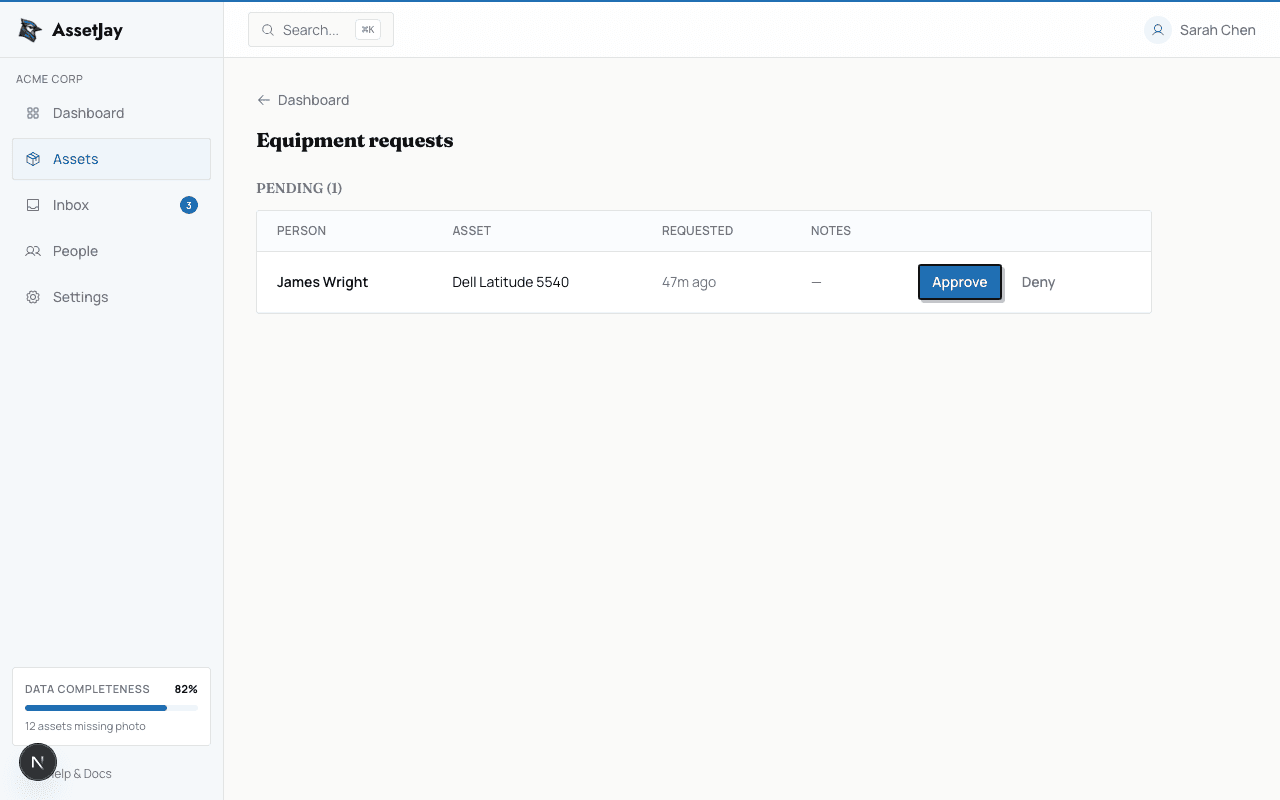
When the portal is in Request mode and an employee submits a request, it shows up in the Needs you list on your dashboard. Click Review to open Equipment requests. Each request shows who asked, what they want, when they asked, and any notes they added.
Click Approve to assign the asset to the employee, or Deny if it's not available. Employees can also cancel their own pending requests.
The number of pending requests also appears in Settings so you never lose track.
Self-checkout notifications
In Self-checkout mode, employees take equipment without waiting for approval. To keep you in the loop, AssetJay sends you an email every time someone checks something out, with the employee's name and the asset details.
If a checkout doesn't look right, you can reassign or return the asset from your dashboard at any time.
Shared equipment
Some gear is shared across the team: conference webcams, projectors, external drives. When an admin marks an asset as Shared, it appears in a dedicated “Shared equipment” section on the available equipment page.
Shared equipment works differently from regular assets:
- Always available to borrow: regardless of portal mode (view, request, or checkout)
- Pick a return date: employees choose when they'll bring it back
- Automatic reminders: AssetJay emails the borrower the day before, the day of, and when overdue
- Self-return: employees can return items from their My Assets page with one click
Borrowed items show up on the employee's My Assets page with the due date. Overdue items are flagged in red. The admin also gets a notification when something is overdue.
Related
- People & Offboarding: managing team members
- Asset management: adding and tracking equipment
- Pricing: see what's included in Pro