Asset Management
Every piece of equipment in one place. Add details, attach proof of purchase, assign to people, and never lose track.
Your asset inventory
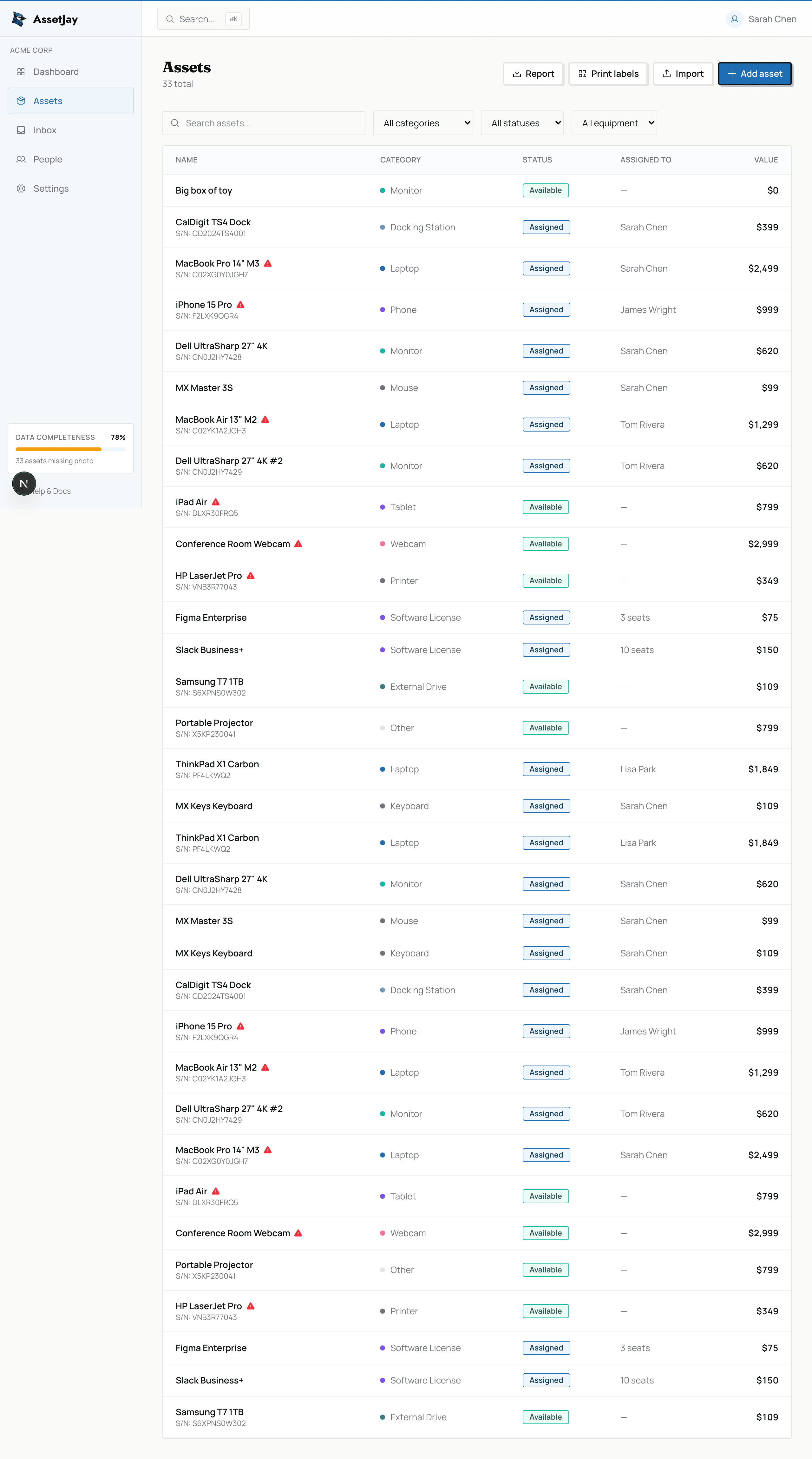
The Assets page gives you a complete view of everything your team owns. Filter by category or status, search by name, and see who each item is assigned to. Warranty indicators flag assets that are expiring or already expired.
Adding & editing assets
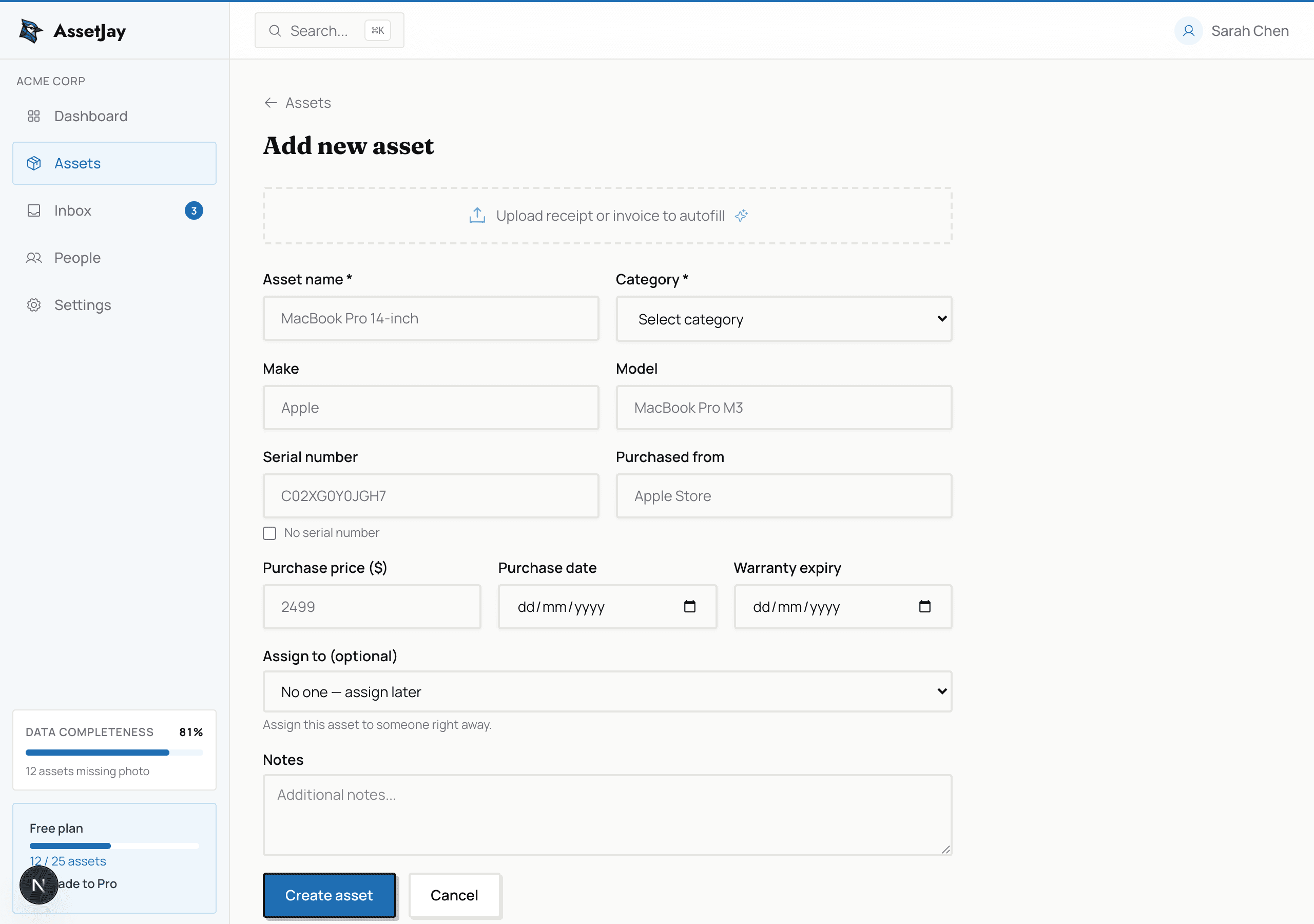
Click Add Asset to open the asset form. You can track:
- Name & category: laptop, monitor, phone, headset, and more
- Asset tag: your own label for the device, like NW-0042 (see Asset tags)
- Purchase info: price, date, vendor
- Warranty: expiry date and warranty provider. The dashboard alerts you when warranties are about to expire
- Assignment: which team member has it
- Serial number & notes: for insurance and support
Asset tags
An asset tag is the number on the sticker you put on a device, like NW-0042. It's optional. Use it if your team labels its equipment, or if you're moving over from a spreadsheet that already has an ID column.
- One per asset. Each tag can only be used once in your account. Capitals don't matter, so nw-0042 and NW-0042 count as the same tag. If you type one that's taken, AssetJay tells you which asset has it.
- Suggested in sequence. Once you've tagged a few assets, the add form fills in the next number for you: after NW-0042 it suggests NW-0043, padded the same way. Change it or clear it if you like. No tags yet means no suggestion, so you pick the scheme.
- Easy to find. Type a tag into search (Cmd+K, or Ctrl+K on Windows) and the asset with that exact tag comes first. The assets list has a Tag column and its search box matches tags too.
- On the label. Printed QR labels show the tag under the code, so anyone can read it without a phone. Assets without a tag print as before.
- In reports. The insurance report and the warranty claim pack list the tag next to the asset name.
Importing from a spreadsheet? A column called Tag, Asset tag or Asset ID maps to the tag automatically. See Import & labels. Receipts from the Inbox don't carry a tag, so new assets from a receipt get the next free number in your sequence. You can change it on the card before you accept.
Lots of the same thing
Got 50 sensors of the same model? Each one is still its own asset with its own serial number, tag and history, but you don't have to add them one by one.
- Add multiple. On the add asset page, pick Add multiple. Fill in the shared details once, paste the serial numbers one per line, and AssetJay makes one asset per line. Tags count on from the first one you give (the form suggests your next number, for example AJ-0043). Up to 100 at a time.
- Group by model. Tick Group by model above the assets list to fold identical units into one row showing how many there are, how many are available and how many are out.
- Do several at once. Tick the boxes (or a whole group) to assign, lend, return or print labels for all of them. Lending needs shared equipment; anything else gets skipped, and AssetJay tells you which.
- One reminder. If someone borrows ten units due back the same day, they get one reminder listing all ten, not ten emails.
Documents & photos
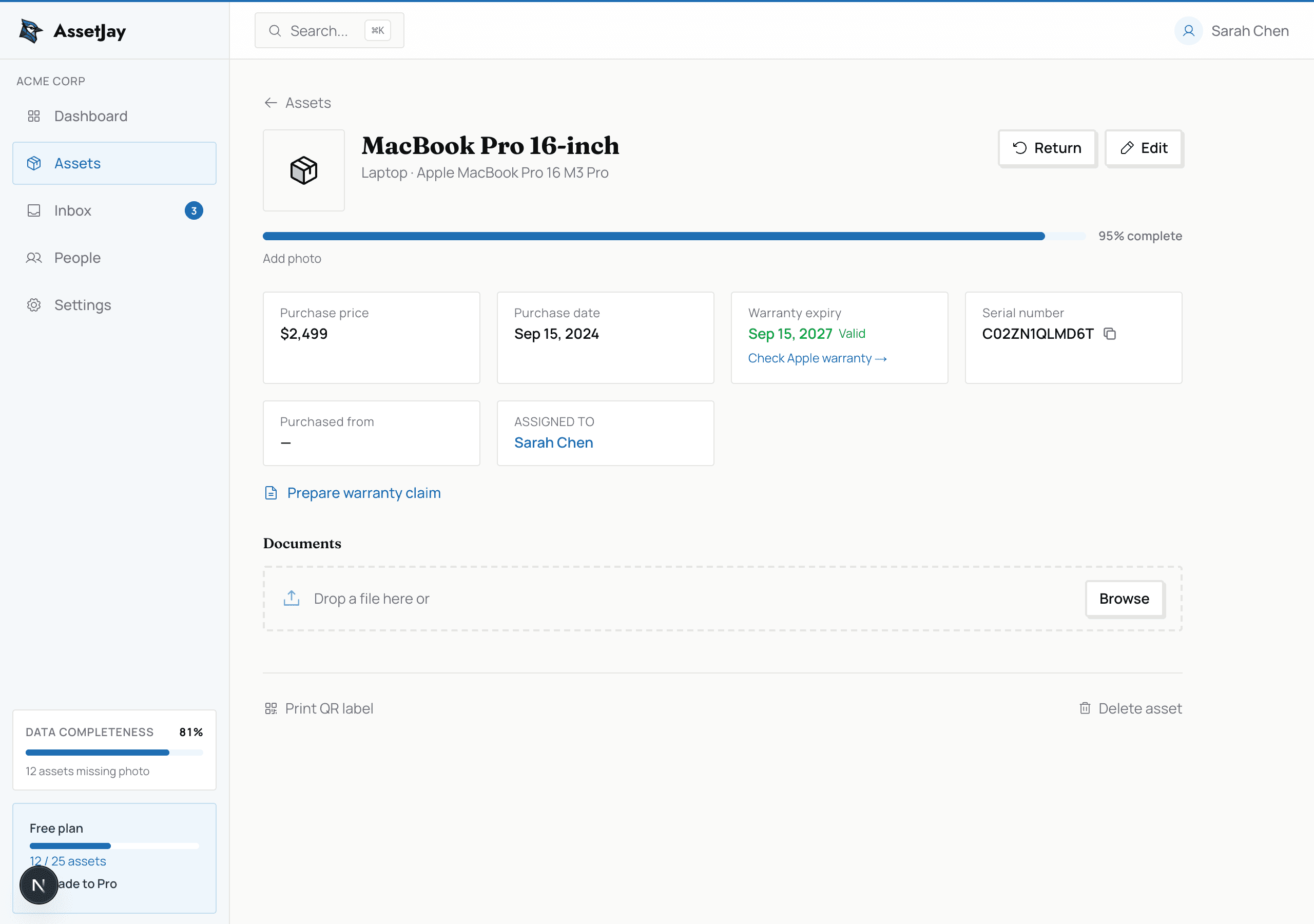
Each asset has its own detail page where you can attach receipts, warranty documents, and photos. No more digging through old emails when you need proof of purchase.
Assigning assets to people
Use the Assigned To field on any asset to link it to a team member. When you view a person's profile, you'll see all their assigned equipment. When someone leaves, the offboarding checklist shows exactly what to collect.
Shared equipment
Some things aren't assigned to one person: conference room webcams, portable projectors, external drives. Mark these as Shared equipment in the asset form and they become borrowable.
When someone borrows a shared item, they pick a return date. AssetJay sends reminders the day before, the day of, and if the item is overdue. You'll also get a notification as the admin if something hasn't been returned.
Shared equipment is always available to borrow from the Employee Portal, regardless of which portal mode you've chosen. You can filter your asset list to shared equipment with the Shared only option in the equipment filter.
Custom categories
Track kit the built-in categories don't cover, like drones, sensors or test units you lend to customers. Go to Settings → Categories, add a name and pick a colour. Your categories show up in the asset form, the category filter, CSV import, labels and reports.
- Renaming a category renames it on every asset in it.
- Removing a category moves its assets to Other. AssetJay tells you how many first.
- CSV import matches your category names whatever the case, so “DRONE” files under Drone.
Free accounts can add up to 5 categories, Pro accounts up to 15.
Locations
Give each asset a location, like an office, a lab or a customer site, separate from who it's assigned to. Pick one on the asset form or add a new one right there. Manage the list in Settings → Locations, filter the asset list by location, and import locations from a CSV column. Deleting a location never deletes its assets: you choose where they go.
Custom fields
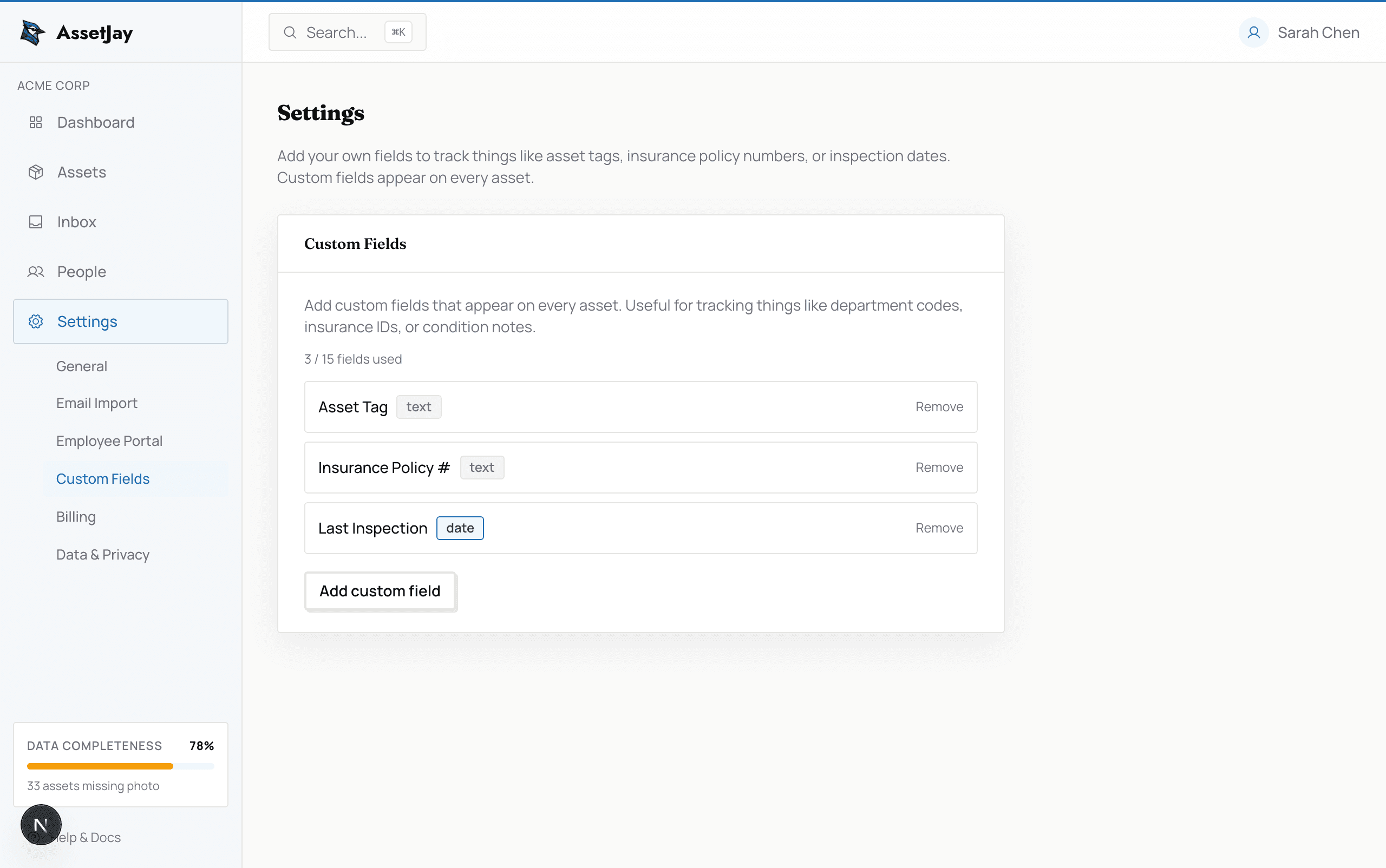
Need to track something AssetJay doesn't have a built-in field for? Create your own. Go to Settings → Custom Fields and add fields like:
- Text: insurance policy numbers, cost centres, purchase order numbers
- Date: last inspection date, lease end date
- Number: replacement cost, age in years
Custom fields appear on every asset form and are displayed on the asset detail page when filled in. Free accounts can create up to 5 fields, Pro accounts up to 15.
Related
- People & offboarding: manage who has what
- Import assets in bulk via CSV