Everything you need to track company equipment.

Log assets in 30 seconds, get reminded before warranties expire, and know exactly who has what when someone leaves.

Start freeFree for 25 assets. No card needed.

Log it once. Find it forever.

Every asset gets a complete record: purchase details, receipts, warranty dates, and who has it. When you need to find something, it is all there.

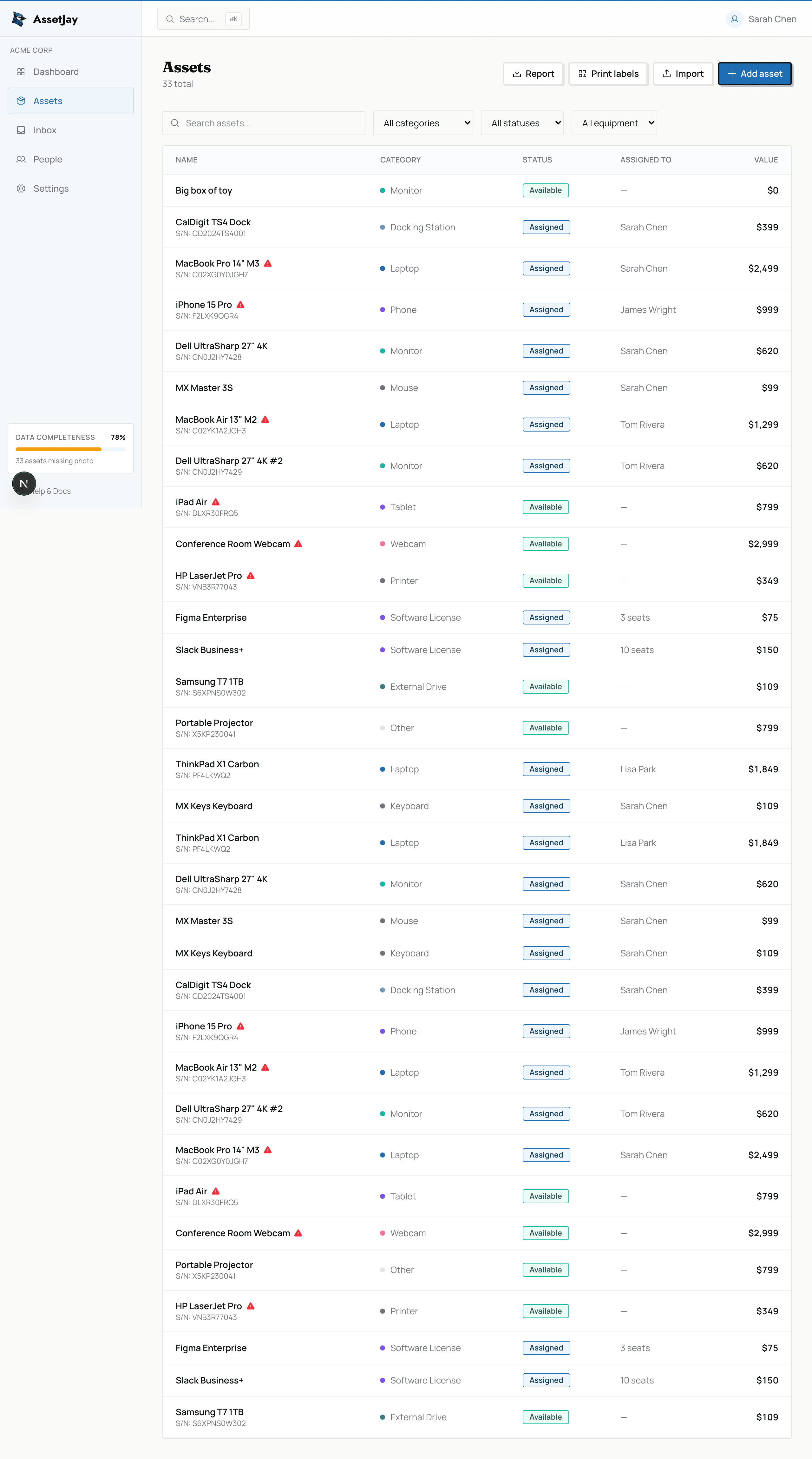
AssetJay assets page showing a list of tracked equipment with asset tags, categories, values, and assignments
The assets list · filter, search, see the whole inventory
Tracking

Track anything

16 built-in categories, from laptops and monitors to docking stations and software licences. Add serial numbers and purchase details for every item, and see it all in one list.

  • 16 categories: laptops, desktops, monitors, phones, printers, docking stations, software licences and more, plus Other for everything else
  • Filter by category or status, search by name, see who each item is assigned to
  • Purchase info: price, date and vendor, plus serial number and notes for insurance and support
  • Warranty indicators flag assets that are expiring or already expired
  • Asset tags: your own sticker numbers, like NW-0042. One per asset, suggested in sequence, found with Cmd+K and printed on labels
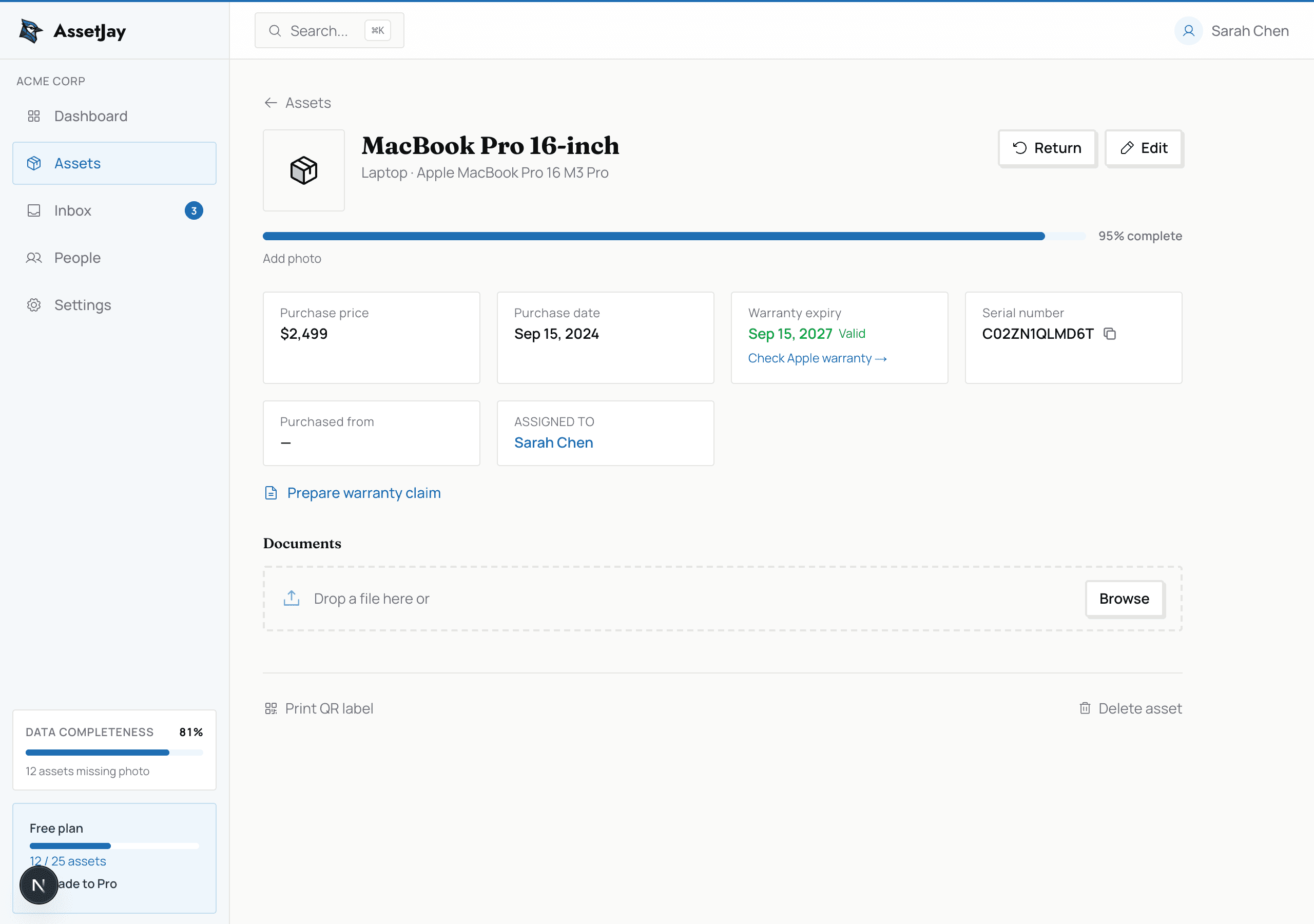
Asset detail page with receipts, warranty dates, and history
Asset details with receipts and warranty
Tracking

One record per asset

Each asset has its own detail page, so proof of purchase stays with the thing it belongs to. No more digging through old emails.

  • Attach receipts, warranty documents and photos
  • Warranty expiry date on the record
  • Assigned-to field links the asset to a team member
  • Only name and category are required; everything else is optional
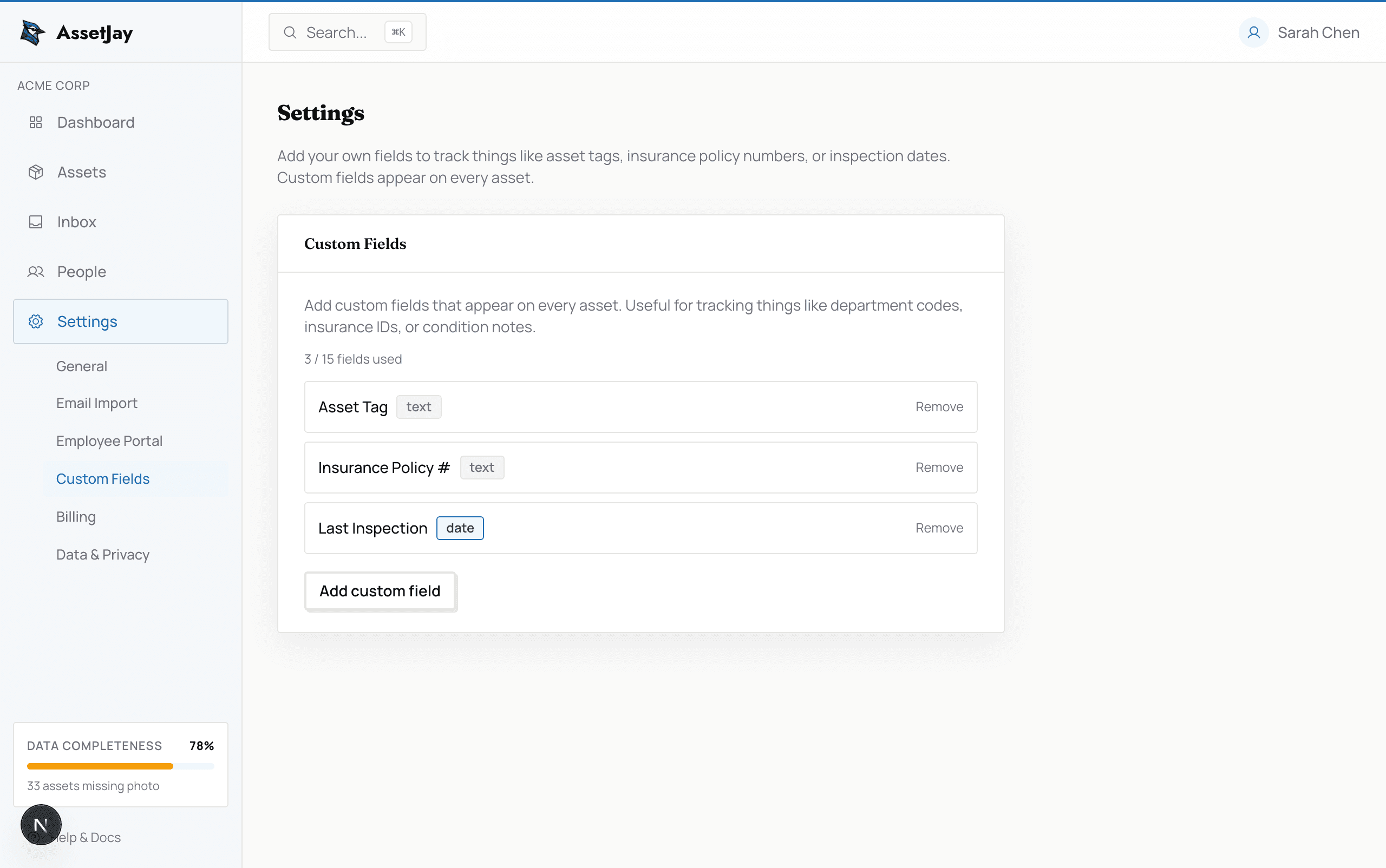
AssetJay custom fields settings page showing two custom fields: Insurance policy # (text) and Location (text)
Settings · text, date and number fields
TrackingFree: 5 fieldsPro: 15 fields

Custom fields

Track anything specific to your organisation. Fields appear on every asset form and on the detail page once filled in.

  • Text: insurance policy numbers, locations, cost centres
  • Date: last inspection date, lease end date
  • Number: replacement cost, age in years
  • Managed in Settings
Software licences
Design suite12 seats · renews 14 Jan
Project tracker8 seats · renews 02 Mar
Password manager15 seats · renews in 9 days
Example data · licence key, renewal date, seat count
Tracking

Software licence tracking

Log licence keys, renewal dates and seat counts alongside your hardware. Everything in one place.

  • Licence key, renewal date and seat count per licence
  • Sits next to hardware in the same inventory
  • Software licences assigned to someone show on their My Assets page in the employee portal

Receipts in. Reminders out.

Drop the paperwork in, confirm the details, and AssetJay nudges you before any warranty runs out.

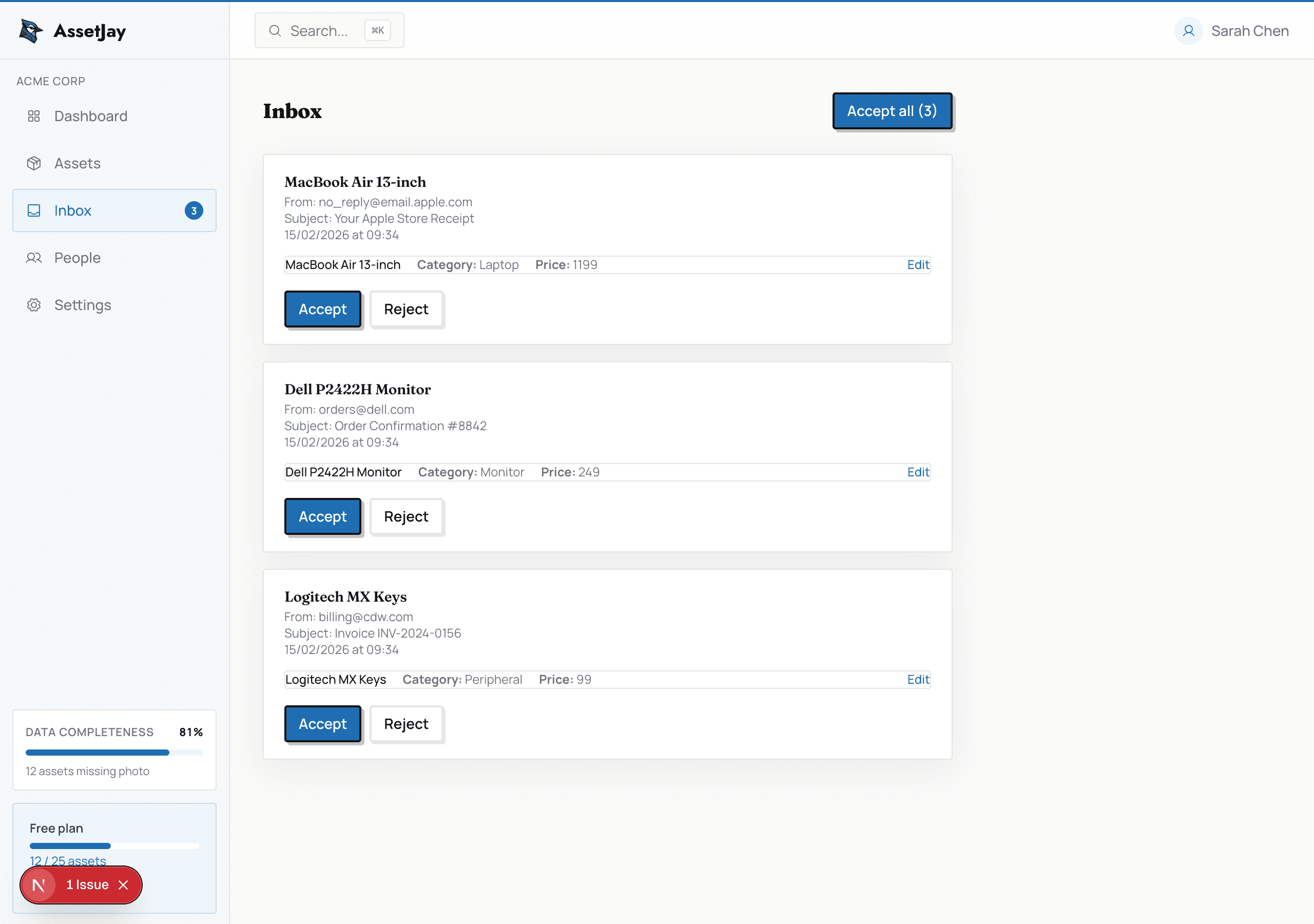
AssetJay imports page showing pending email imports with extracted asset information
Forwarded emails appear as pending imports
Receipts

AI receipt extraction

Forward a receipt or invoice email, or drop a file. AI reads it and fills in the make, model, price and warranty date. You just confirm.

  • Forward to your team’s own address (yourteam@assetjay.com), shown on the Inbox page
  • Extracts asset name, make, model, price, vendor, purchase date and warranty date
  • Creates a pending import to review and approve with one click
  • Reads the attached receipt (PDF, JPG, PNG, GIF, WebP) or, with nothing attached, the email itself
  • Each attachment or email Jay reads counts as one AI read
  • Free 10 / month · Pro 100 / month
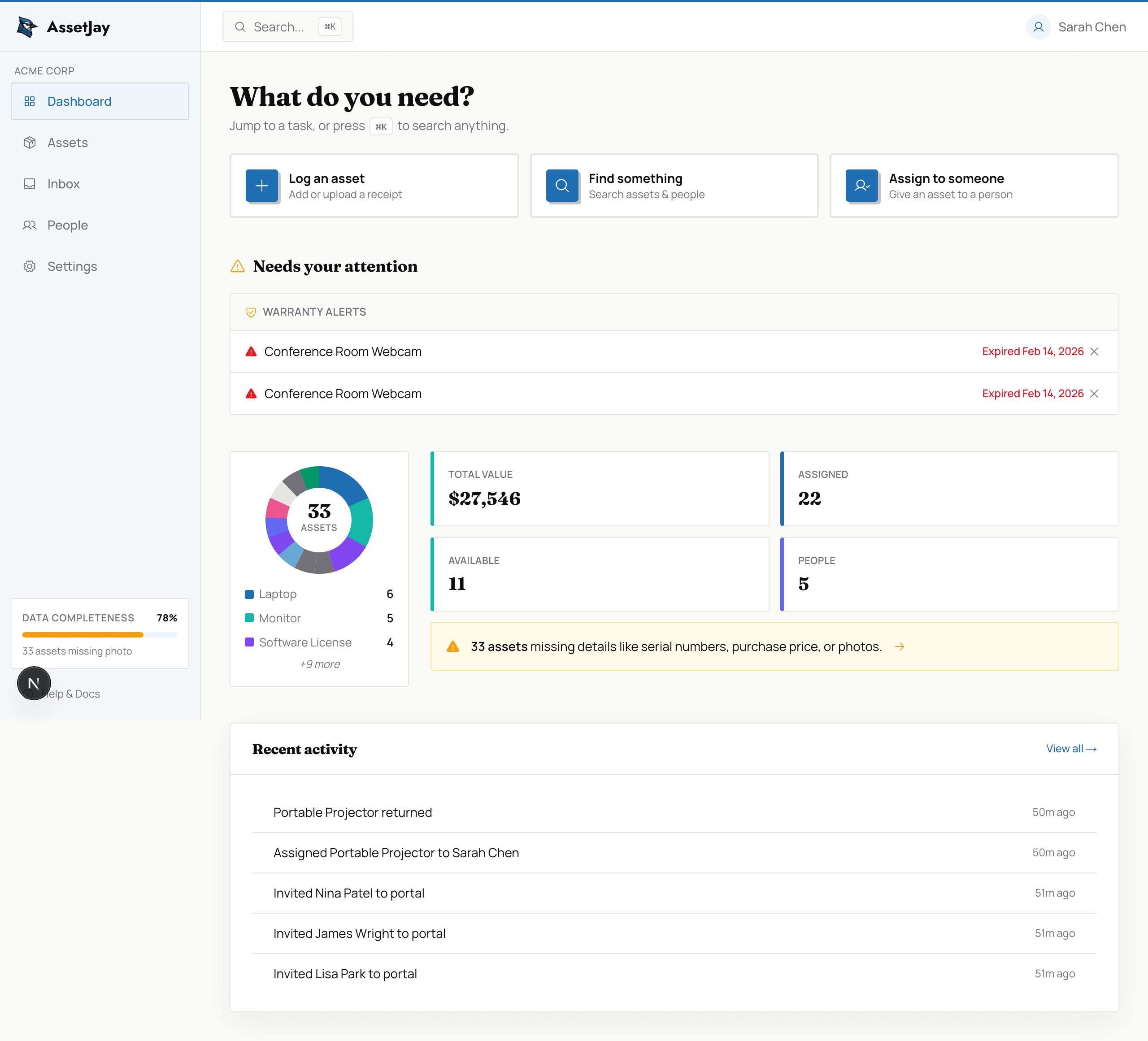
AssetJay dashboard showing stats, warranty alerts, quick actions and recent activity
Your dashboard · warranty alerts and quick actions
Warranties

Warranty expiry alerts

Automated email reminders before warranties expire. Never miss a claim window again.

  • Emails at 30, 7 and 1 day before expiry
  • Grouped into one email per organisation, sent to the owner
  • Table of expiring assets with name, make/model and date
  • Dashboard also shows warranty alerts and flags expiring or expired assets

Know who has what.

When someone leaves, a single checklist shows exactly which equipment to collect.

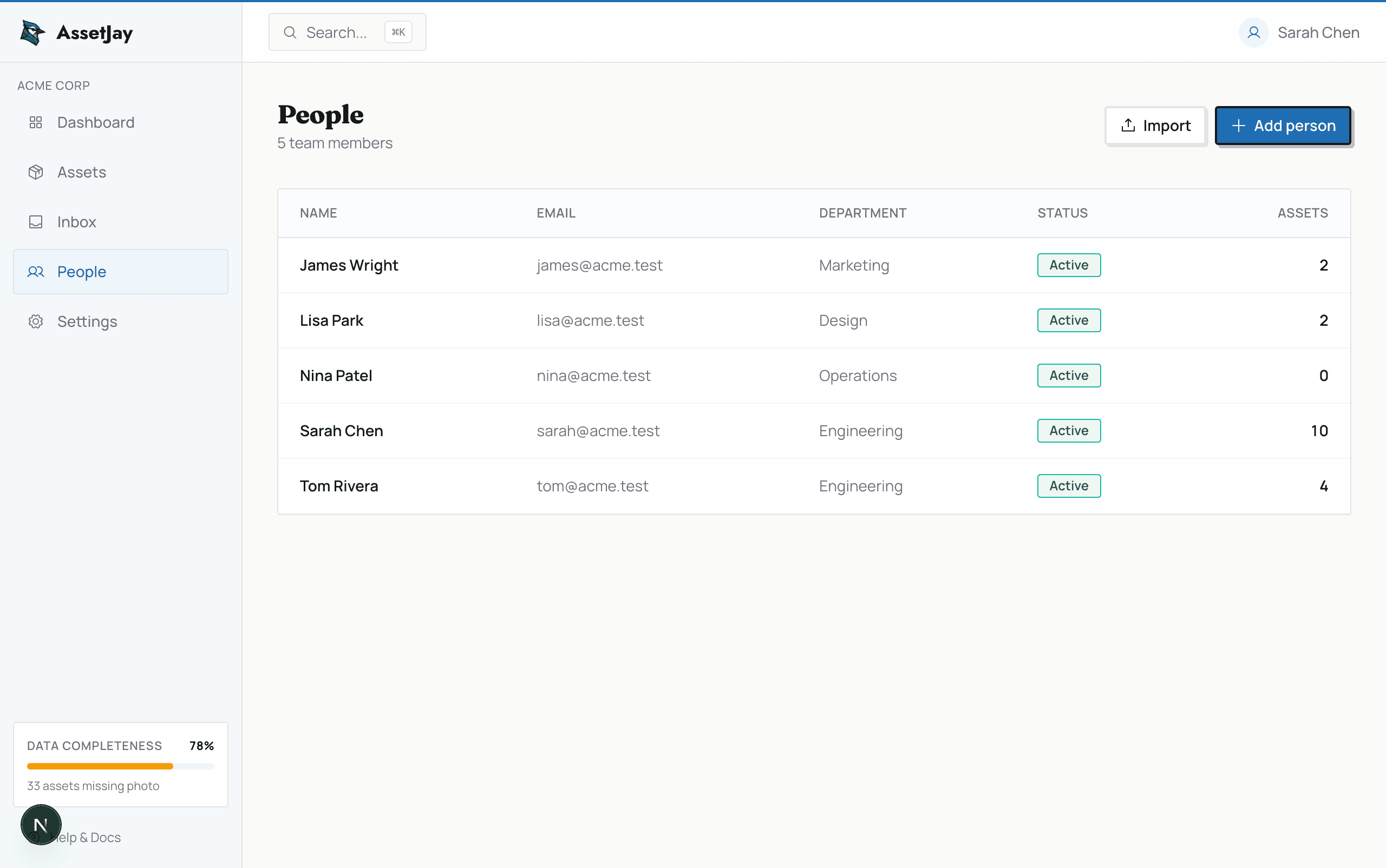
AssetJay people page showing team members with assigned asset counts
Your team at a glance
People

Team members and assignments

The People page lists everyone and how many assets each person holds, so it is easy to spot who has more than they need.

  • Add a person with name, email and department
  • Bulk import people from CSV
  • A person’s profile lists all their assigned equipment
  • Adding someone does not create a login; portal invites are a Pro feature
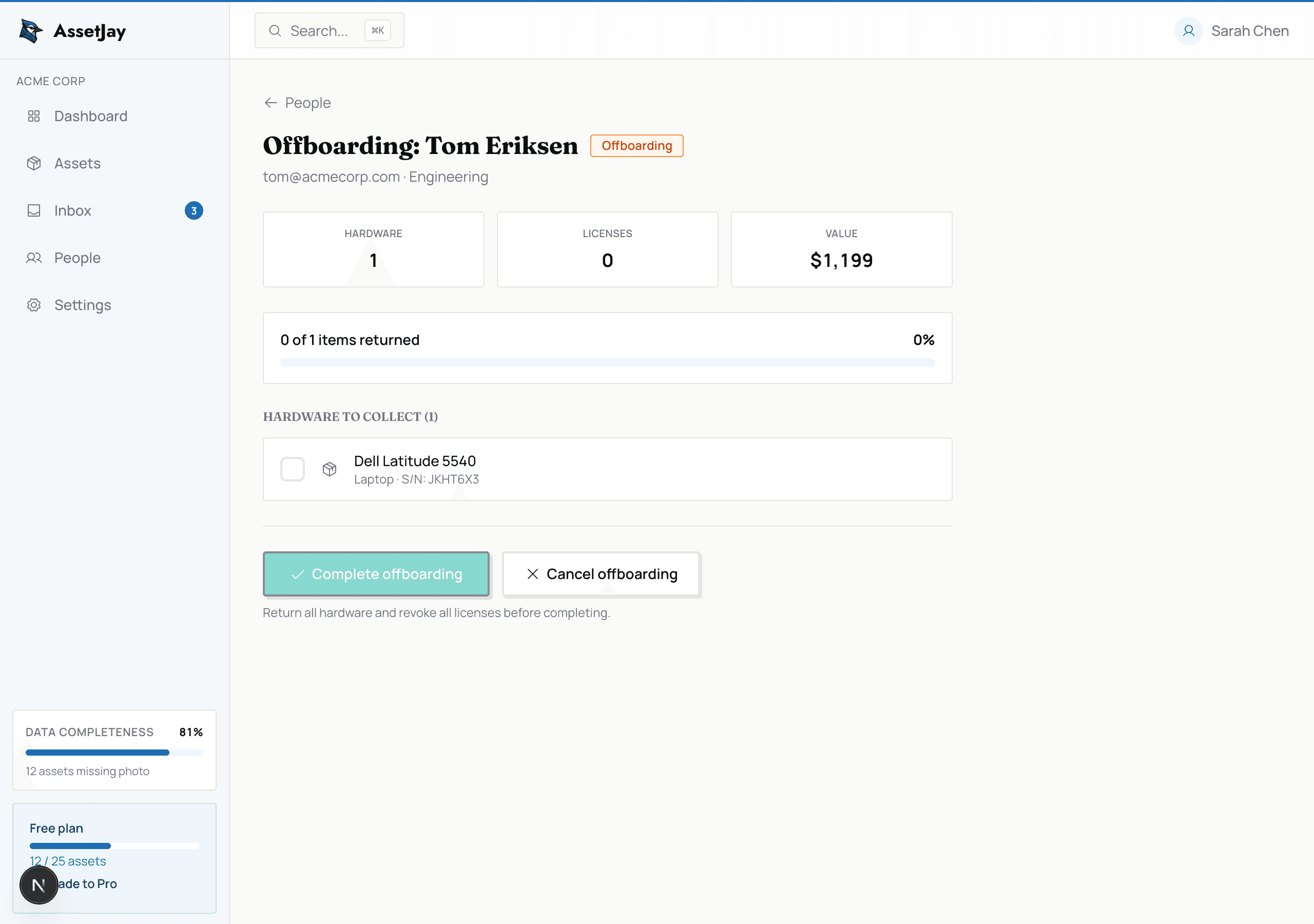
Offboarding checklist with item-by-item return tracking
Offboarding checklist
Offboarding

Offboarding checklists

When someone leaves, generate a checklist of everything they have. Track returns item by item until it is all accounted for.

  • Start it from the leaver’s profile
  • Lists every asset assigned to the leaver
  • Check items off as they come back
  • No more Slack messages three weeks later

Your team can help themselves.

Give employees a portal to see their gear, borrow shared equipment and request what they need. Fewer Slack messages, fewer interruptions. The portal is part of Pro.

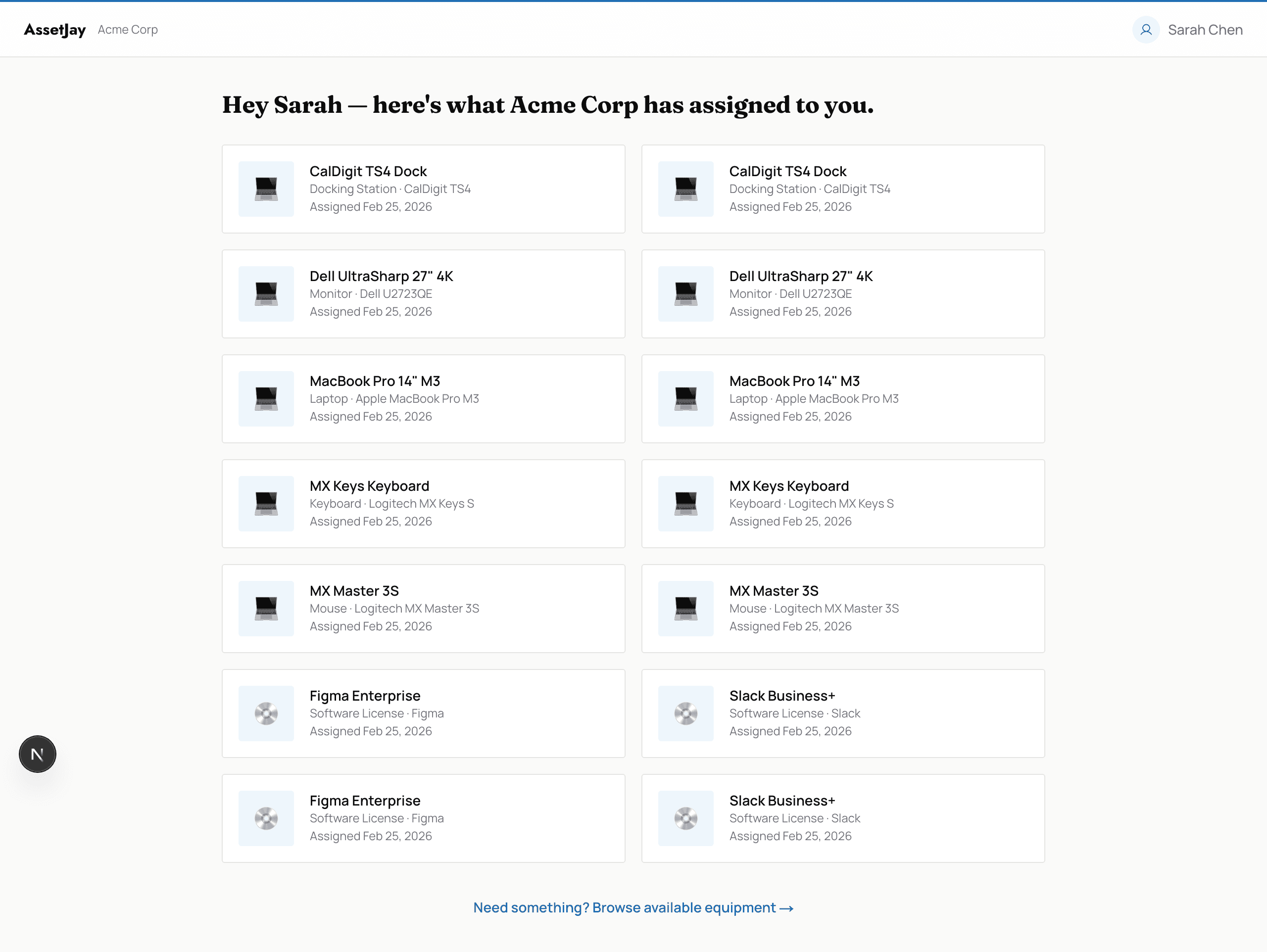
Employee portal showing assigned devices and borrowing
Employee self-service portal · My Assets
Employee portalPro only

Employee self-service portal

Staff see what is assigned to them, request equipment and borrow shared items without bothering you.

  • Sign in with a magic link, no passwords
  • My Assets: name, category, make/model and assignment date
  • Employees never see purchase prices, serial numbers or other people’s assets
  • Invite when assigning an asset, in bulk from Settings, or from a person’s profile
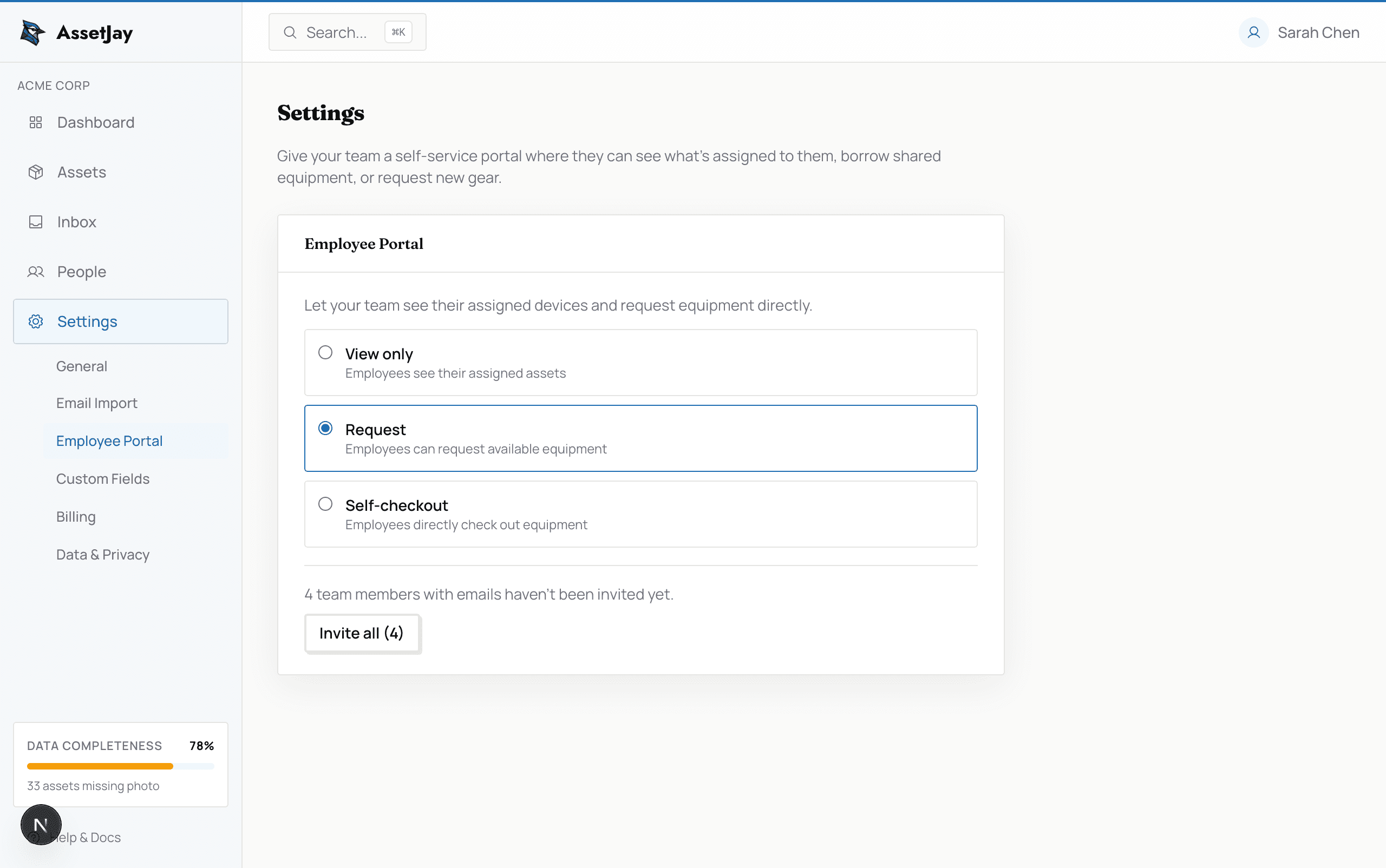
AssetJay settings page showing employee portal mode selector with view only, request, and self-checkout options
Settings · choose the portal mode
Employee portalPro only

Three access modes

Decide how much freedom your team gets, from look-only to grab-it-yourself.

  • View only: employees see their assigned assets
  • Request: employees browse available gear and ask; you approve or deny
  • Self-checkout: employees take available gear directly, and you get an email each time
  • Available equipment shows name, category and photo, never price or serial
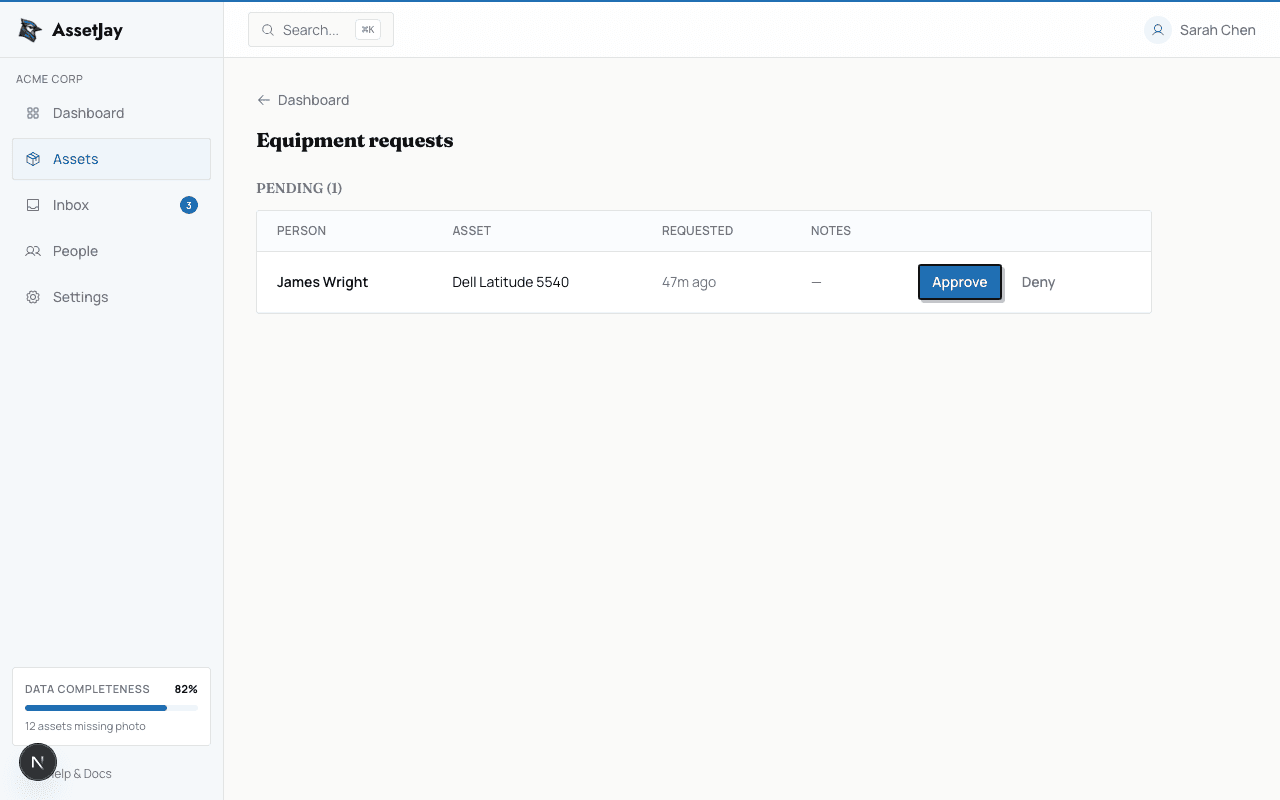
Admin equipment requests page showing a pending request with approve and deny buttons
Admin requests page
Employee portalPro only

Equipment requests

In Request mode every ask lands in one queue. Approve to assign the asset, or deny if it is not available.

  • Find them under Assets → Equipment requests
  • Each request shows who asked, what, when and any notes
  • Employees can cancel their own pending requests
  • Pending count also shows in Settings
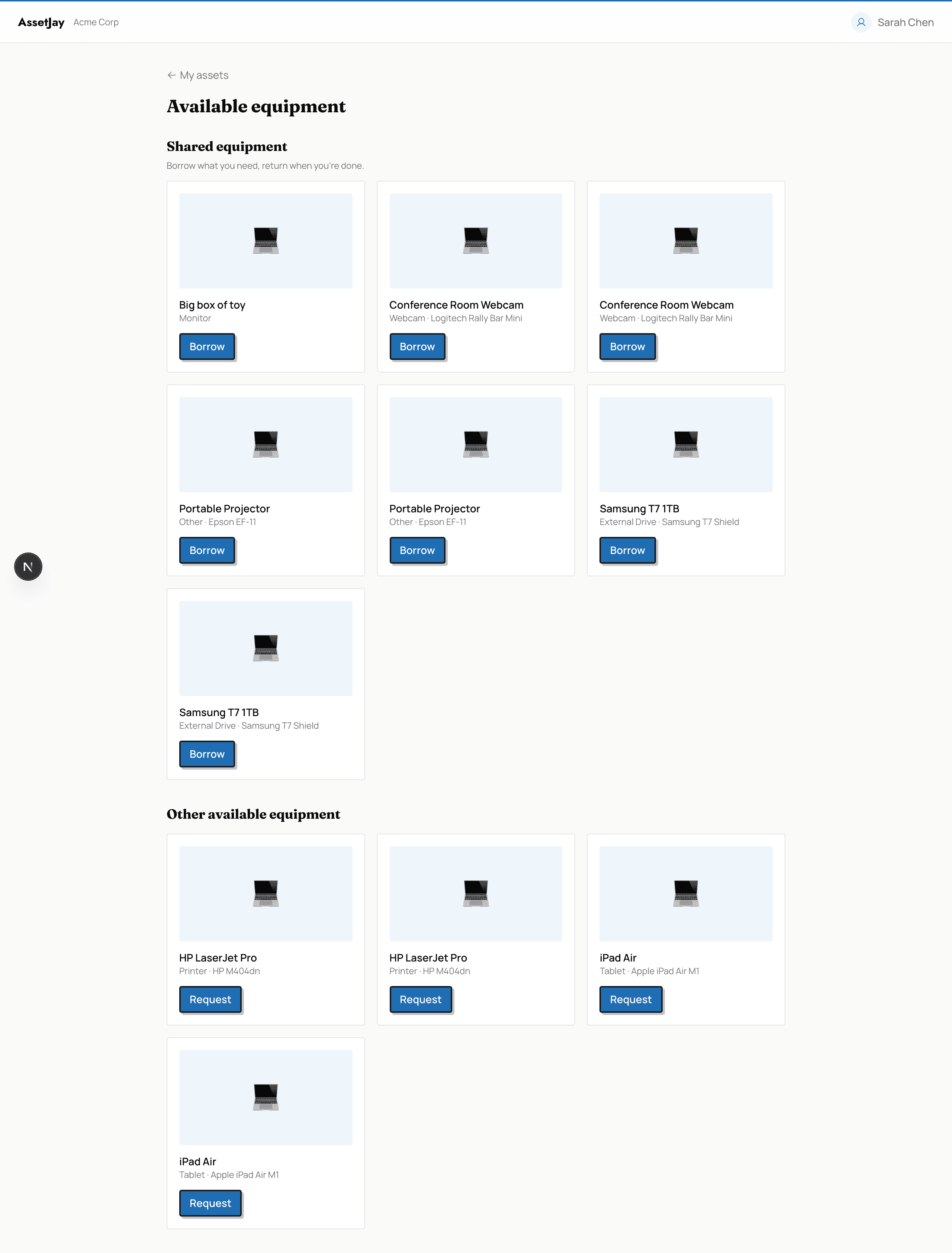
Employee portal available equipment page showing shared equipment section with borrow buttons
Shared equipment · borrow what you need
Employee portal

Shared equipment & borrowing

Check out shared gear like projectors, webcams or external drives. Automated reminders nudge people to return items on time.

  • Mark an asset as Shared in the asset form
  • Self-service borrowing happens in the employee portal (Pro); on Free, admins lend shared equipment with a due date
  • Always borrowable, whatever the portal mode, with no admin approval
  • Borrower picks a return date; reminders go the day before, the day of and when overdue
  • One-click self-return; overdue items show in red and you are notified

Less busywork. More control.

Bulk import your existing spreadsheet, print QR labels for everything, and get a monthly digest without ever logging in.

Map your columns
DeviceName
S/NSerial number
CostPrice
WarrantyWarranty expiry
Preview before saving · example columns
Imports

Bulk import

Upload a CSV file and map its columns. Go from spreadsheet to tracked in minutes.

  • CSV files, for assets and for people (export from Excel or Google Sheets first)
  • Common headings like Name, Asset tag, Serial Number and Price map automatically
  • Tags already in use, or repeated in the file, are listed before you import
  • Preview your data, then confirm; assets are created instantly
  • Most teams are fully tracked in under 10 minutes
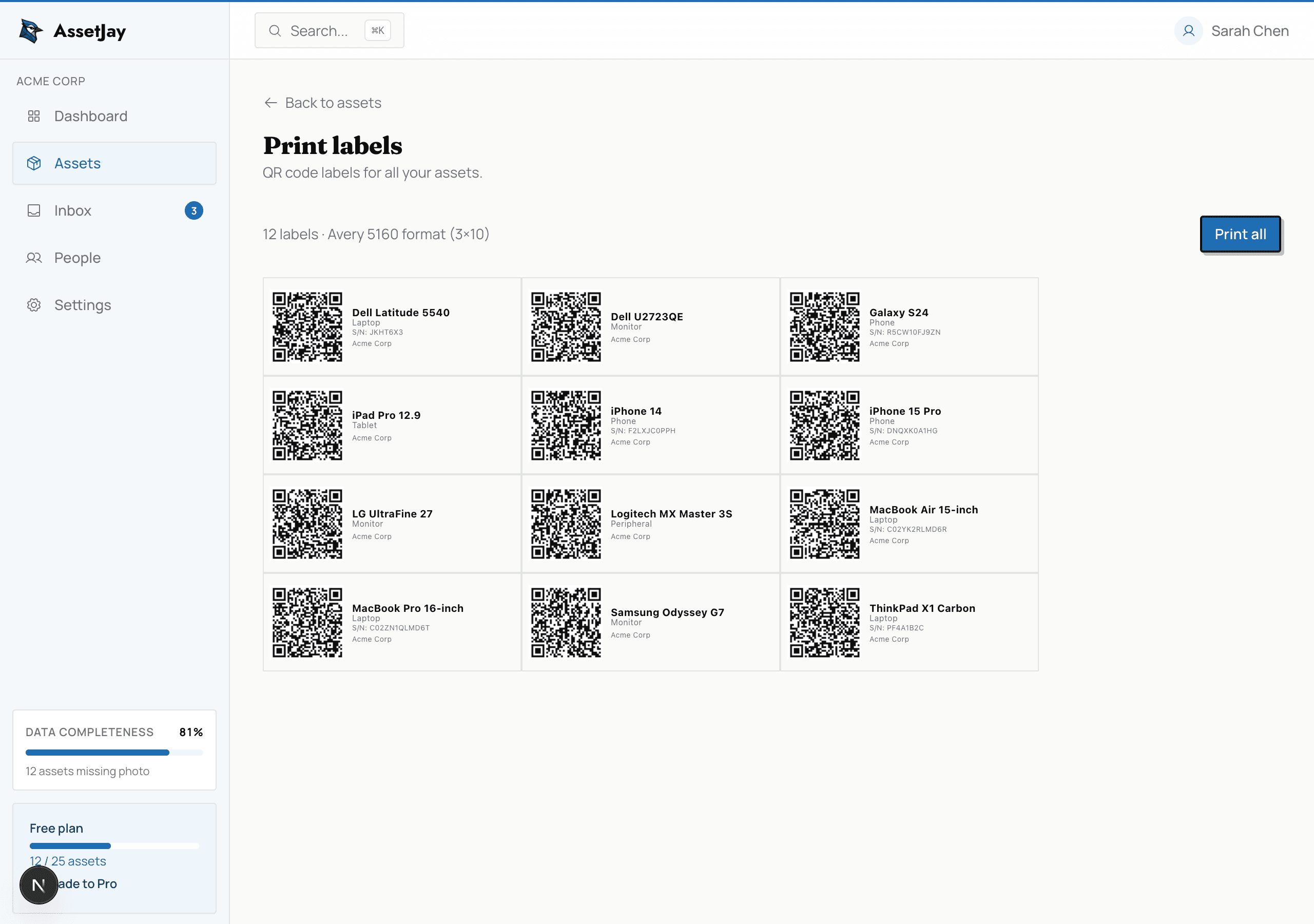
AssetJay QR code label generation page with printable label sheets
Printable QR labels · scan to view details
Labels

QR code labels

Generate and print QR labels for any asset. Scan with a phone to pull up the full details instantly.

  • Stick them on laptops, monitors or equipment boxes
  • A scan opens the asset’s detail page
  • Generate in bulk and print on standard Avery label sheets
  • The asset tag prints under the QR code, so the sticker is readable without a phone

A monthly summary, no login needed.

Monthly asset digest · example
Total value$41,860
New additions6 this month
Expiring warranties3 in the next 30 days
Incomplete records4 need details
Example numbers · sent by email
Reports

Monthly asset digest

A monthly email summary of where your inventory stands, without opening the app.

  • Total value and new additions
  • Expiring warranties
  • Incomplete records that need attention
  • Arrives in the first week of each month

Manage assets from Claude.

Available tools · 9
whoamiShows your organisation name, plan, asset count and limit
list_assetsSearch and filter assets by name, asset tag, serial, category or assignee
list_peopleList team members, used to match names when creating assets
get_assetFull details for one asset, including attached documents
create_assetCreate a new asset with any combination of fields, including its asset tag
update_assetUpdate an asset; only the fields you name change
create_personAdd a new team member
assign_assetAssign or reassign an asset to a person
upload_documentAttach a file (receipt, invoice) to an asset
MCP serverFree on all plans

AssetJay MCP server

Connect Claude Desktop or Claude Code to your inventory, then create, update and look up assets and people by describing what you want.

  • Setup: generate an API key, paste the config block into Claude
  • Keys are stored as SHA-256 hashes, scoped to your organisation, revocable any time in Settings
  • Create and update only, no delete access; deletion stays in the AssetJay UI
  • Every change is logged in your activity feed

Common questions

What types of equipment can I track?

AssetJay has 16 built-in categories, including laptops, desktops, monitors, phones, printers, docking stations and software licences, plus Other for anything else. You can also add custom fields for anything specific to your organisation.

How does AI receipt extraction work?

Forward a receipt or invoice email to your AssetJay inbox, or drop a file directly. AI reads the document and auto-fills the make, model, purchase price, and warranty date. You just confirm the details.

Can employees see their own assigned equipment?

Yes. AssetJay includes a self-service portal where employees can view their assigned devices, borrow shared equipment, and submit equipment requests without needing admin access. The portal is a Pro feature.

Does AssetJay send warranty expiry reminders?

Yes. AssetJay automatically sends email alerts at 30 days, 7 days, and 1 day before any warranty expires, so you never miss a claim window.

Can I import my existing equipment spreadsheet?

Yes. Save it as a CSV and upload it. AssetJay matches common column headings automatically, and you can map the rest yourself before anything is saved. Most teams go from spreadsheet to fully tracked in under 10 minutes.

FreeUP TO 25 ASSETS
$24.99/moPRO · 250 ASSETS · PORTAL