Import & Labels
Get data into AssetJay fast. Import spreadsheets, forward receipt emails, and print QR labels for physical tracking.
CSV import
Already have a spreadsheet of equipment? Import it directly. AssetJay accepts CSV files and walks you through mapping columns to the right fields.
- Upload your CSV. Go to Assets or People and click Import. Select your file. Import your people first, so asset rows can be matched to them.
- Map your columns. Match each CSV column to an AssetJay field. The importer previews your data so you can verify before saving.
- Review & confirm. Check the preview, then import. If your CSV has an Assigned to column (name or email), the review shows how many rows matched your people. Matched assets are assigned on import; anything unmatched imports unassigned. Rows you already have (same AssetJay ID, serial number or asset tag) start unticked, so re-importing an AssetJay export doesn't duplicate anything. Rows that only share a name, make and model are flagged but stay ticked. Assets are created instantly.
A Tag, Asset tag or Asset ID column maps to the asset tag. Tags must be unique, so the review step lists any tag that's already on one of your assets or appears twice in the file. Those rows still import, just without the tag, and you can fix them afterwards.
Email receipt import
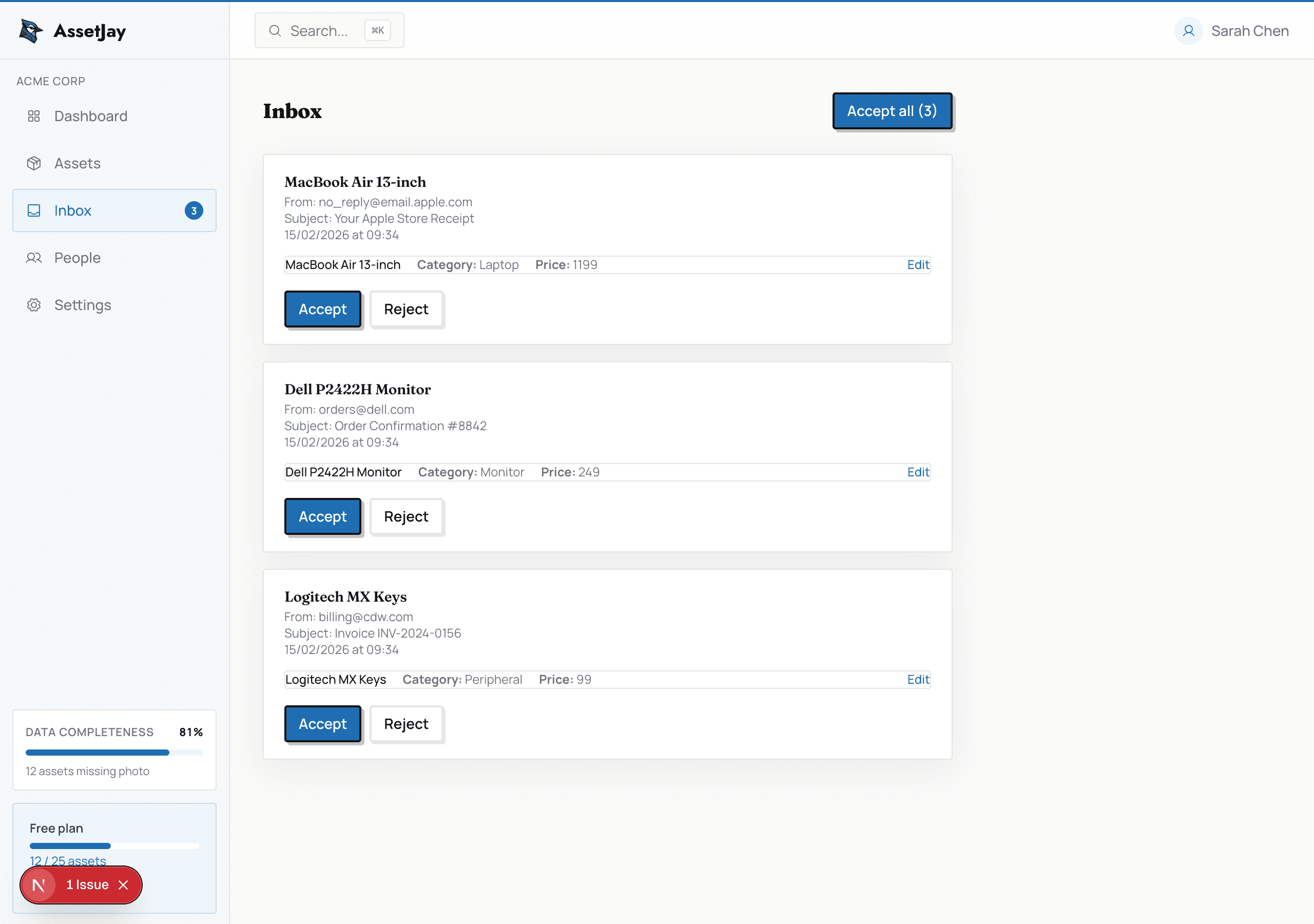
Forward purchase confirmation emails to your team's AssetJay address. Jay reads the receipt, pulls out the asset name, price, vendor and purchase date, and puts a card in your Inbox for you to review.
- Receipt attached? Jay reads the attachment: PDF, JPG, PNG, GIF or WebP, up to 10 MB each and five per email. The file is attached to the asset when you accept.
- Receipt in the email itself? Common for Apple, Amazon and Dell order confirmations. With nothing attached, Jay reads the email text instead and keeps a copy of the email on the asset.
- Nothing to add? If Jay can't find any items, you still get a card saying so, so nothing goes missing quietly.
Small images like logos and signature icons are ignored. If the email text has no receipt, Jay reads the largest picture pasted into the email instead, so a photo of a receipt still works. Each attachment counts as one AI read, and so does reading the email text, so an email with only pasted pictures uses two reads at most: 10 a month on the free plan, 100 on Pro.
QR code labels
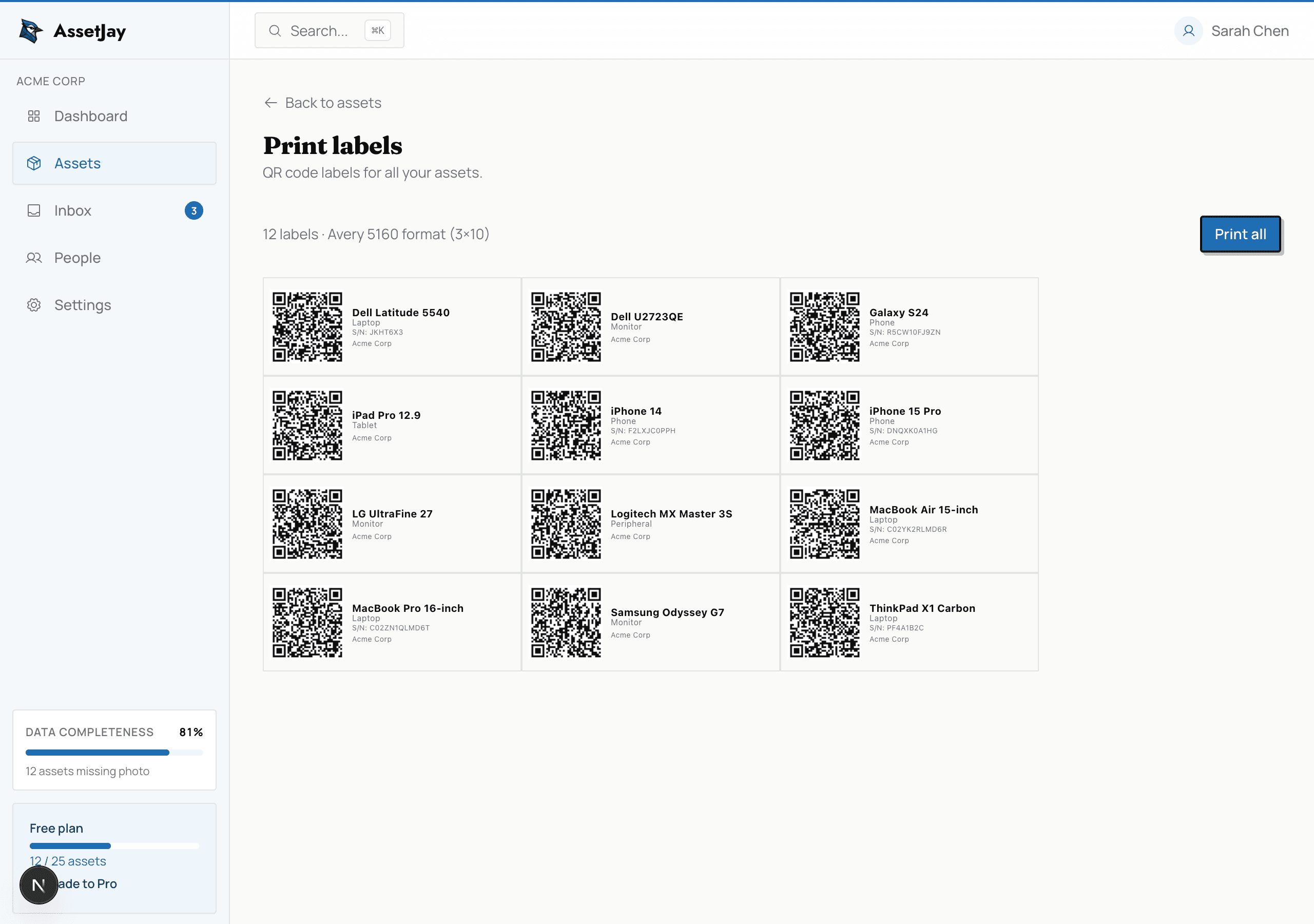
Generate and print QR labels for any asset. Stick them on laptops, monitors, or equipment boxes. Scanning the code takes you straight to the asset's detail page. If the asset has an asset tag, it prints under the code.
Related
- Asset management: adding and editing assets
- Getting started: set up your account