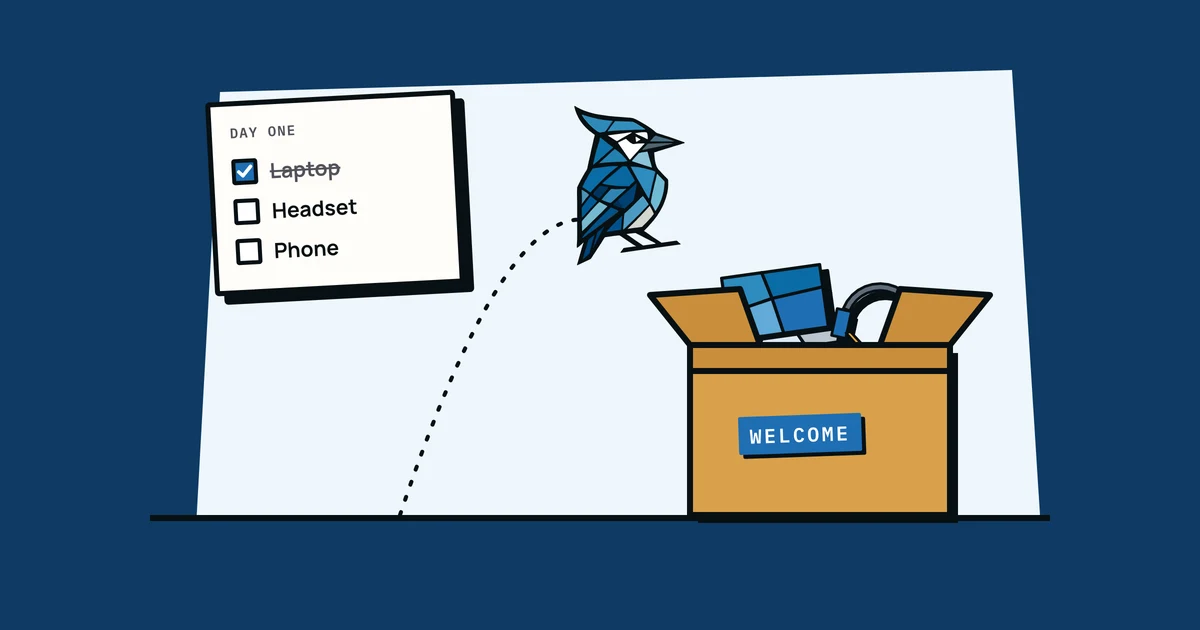
You've just hired someone. They start on Monday. Somewhere between the offer letter and the onboarding doc, it hits you: what equipment do they actually need? And who's sorting that out?
If this is your first or second hire, you're probably figuring it out on the fly. That's fine. But it helps to have a list so you don't end up with a new person sitting at an empty desk on day one, waiting for someone to find them a charger.
This is the practical version rather than a 50-page IT onboarding policy: what to buy, what to set up, and what to write down so you're not scrambling next time.
The Standard Setup
Most knowledge workers need roughly the same setup. The specifics vary by role, but the bones are the same. Here's what to think about for each piece.
Laptop
This is the big one. Mac or Windows depends on your team and the tools you use. The main decision is how much machine they need. Developers and designers need more RAM and processing power. Everyone else is fine with a mid-range machine. Budget somewhere between $800 and $2,000 depending on role.
Get at least 16GB of RAM. It's 2026 and 8GB runs out the moment you open Slack, a browser, and a video call at the same time. Order early if you can. Laptops with custom specs can take a week or two to arrive.
Monitor
If your new hire is working from an office, a second monitor is worth it. A 24-inch or 27-inch display costs $200 to $400 and makes a real difference to productivity. For remote workers, this is where it gets more involved (more on that below).
Keyboard and Mouse
Some people are happy with whatever came in the box. Others have strong opinions. A decent wireless keyboard and mouse set runs about $50 to $80. Don't overthink it. If someone wants something specific, they'll ask.
Headset
If your team does video calls, it's worth getting a proper headset, because laptop microphones pick up everything. A basic USB or Bluetooth headset with a decent mic costs $50 to $100 and makes calls easier for everyone on them.
Charger, Cables, and Adapters
The laptop comes with one charger. Consider getting a spare, especially for people who split time between home and office. USB-C hubs or docking stations are useful if they're plugging into a monitor, keyboard, and mouse every day. Budget $30 to $100 here depending on what they need.
Bag
If they're carrying a laptop around, a bag or sleeve is worth providing. It's a small cost ($30 to $80) and it protects a $1,500 machine.
Software and Accounts
Hardware is only half of it. Before day one, you want these ready to go:
Email account set up and working
Communication tools like Slack or Microsoft Teams, with the right channels and groups
Core work tools for their role: project management (Notion, Linear, Asana), design (Figma), code (GitHub), whatever your team runs on
Password manager like 1Password or Bitwarden, with their vault set up
Cloud storage access: Google Drive, Dropbox, OneDrive
VPN if you use one
The goal is that when they open the laptop on Monday morning, they can actually log in and start working. Spending the first day waiting for account approvals is a slow start for everyone.
Remote Workers Need More
If your new hire is working remotely, the equipment list gets longer. They don't have a shared office with a printer in the corner and a spare monitor on the shelf. You're outfitting an entire workspace from scratch.
On top of the standard setup, think about:
Desk: not everyone has a proper home office. A basic standing desk or a decent fixed desk is $200 to $500.
Chair: this is one to spend a bit more on. A bad chair can end up costing you in sick days. Budget $300 to $600 for something with proper lumbar support.
Webcam: laptop webcams are acceptable, but a standalone webcam ($50 to $100) is noticeably better for video calls.
Desk lamp or ring light: sounds optional until you've been on a call with someone sitting in the dark.
Then there's the logistics. You need to ship all of this to them, and it's probably best to get it there before their start date. That means ordering early, having a shipping address, and tracking the delivery. If a package goes missing, you want to know what was in it and what it cost. This is where tracking who has what equipment starts to matter from day one.
Tracking What You Gave Them
You just spent $2,000 to $5,000 outfitting a new hire. Maybe more if they're remote and you covered furniture. That's a real investment. And the natural instinct is to move on to the next thing once it's ordered and delivered.
But this is exactly the moment to write it down. Which laptop did they get? What's the serial number? When was it purchased and what was the warranty? Who has the receipt? Which monitor went to them versus the one that went to the other new hire last month?
If you log it now, when the information is fresh and the receipt is in your inbox, it takes two minutes. If you try to reconstruct it six months later when they leave, it takes hours. Or it just doesn't happen, and the equipment is just gone. The offboarding checklist only works if you know what they had in the first place.
At minimum, record:
- What you bought (make, model, specs)
- Serial number
- Purchase date and cost
- Receipt or invoice (attach it somewhere, not just your email)
- Warranty expiry date
- Who it's assigned to
This is the same information you'll need for general equipment management , insurance claims, warranty service, and offboarding. Logging it at purchase time is easiest, because after that you're reconstructing it from memory.
The Checklist
Here's a clean version you can actually use. Not every item applies to every hire, but scanning the full list means nothing gets missed.
Hardware
- Laptop (confirm specs for their role)
- Laptop charger (consider a spare for hybrid workers)
- Monitor (24" or 27")
- Monitor cable (HDMI, DisplayPort, or USB-C)
- Keyboard
- Mouse
- Headset with microphone
- USB-C hub or docking station
- Laptop bag or sleeve
- Webcam (especially for remote workers)
- Phone or tablet (if role requires it)
Remote Worker Extras
- Desk
- Office chair
- Desk lamp or ring light
- Shipping arranged before start date
Software and Accounts
- Email account created
- Slack/Teams access with correct channels
- Core work tools (project management, design, code repos)
- Password manager vault set up
- Cloud storage access (Google Drive, Dropbox, OneDrive)
- VPN configured (if applicable)
- Printer access (if in office)
Physical Access
- Office key or key card
- Parking pass
- ID badge
Documentation
- Serial numbers recorded for all hardware
- Receipts saved and attached to asset records
- Warranty dates logged
- All equipment assigned to the person in your tracking system
Equipment agreement signed
Making It Repeatable
The first time you do this, it feels like a lot. You're figuring out what to order, where to order it, what accounts to create, and who handles what. That's normal.
It should get quicker each time, and by the third hire it'll probably feel routine. The trick is to turn your one-off scramble into a template you can reuse.
Some teams keep a shared doc with the standard equipment list and a step-by-step process. That works for a while. But as you hire more people, a doc gets stale the same way a spreadsheet does. Someone updates the list, someone else uses the old version, and the new hire ends up without a headset.
The better approach is to have your equipment records do double duty. When you know exactly what you've bought, what's available, and what's assigned to who, setting up the next hire becomes a matter of picking from your inventory and assigning it. If something needs ordering, you know that too, because you can see the gap.
That's how AssetJay works in practice. When a new person joins, you assign existing equipment to them or log the new purchases. Serial numbers, receipts, and warranty dates attach to each item. When they eventually leave, the offboarding checklist shows exactly what needs to come back, because it works from the same record you made when they joined.
Start Simple
You don't need a perfect system before your next hire starts. You need a list of what to buy, someone responsible for setting up accounts, and a place to record what you gave them.
If you're doing this for the first time, the checklist above covers it. If you're doing this for the fifth time and it still feels chaotic, it might be time to move from ad-hoc to something more structured. AssetJay is free for up to 25 assets , which is usually enough to cover a few hires and see if it fits your workflow.